E8. Wearable AR: Multimodal Input
Learning Outcomes
- Explain the purpose of multiple input modalities in spatial AR. Before class, review the concepts of modality, natural user interfaces, and context-aware interaction, then connect them to examples where voice, gaze, and gesture work together in an AR experience.
- Configure and recognize controller inputs in Magic Leap 2 development. Ahead of the session, learn how to access inputs via the
MagicLeapInputssystem and identify key input actions such asTrigger,Bumper, andTouchpad.- Integrate offline speech-to-text using Whisper and Unity Sentis. Review how on-device transcription works, how Whisper’s encoder/decoder pipeline operates in Sentis, and how offline speech processing can expand multimodal AR interactions without network reliance.
- Set up and map voice commands in Unity for AR applications. In preparation, understand how voice intents are linked to commands, what permissions are required, and optionally create a Voice Intents Configuration asset to practice the setup process.
- Create and debug custom hand gestures using Unity’s XR Hands system. Before class, explore how Hand Shapes are authored using curl and spread parameters, how gestures are validated with the Hand Shape, Hand Pose, and Advanced Pose Debuggers, and how custom gestures can be integrated into the XR Hands sample scene for reliable recognition.
- Describe supported hand gestures and their applications in AR. For your pre-class task, learn how gestures like pinch, grasp, and spread are detected, and explore how the
XRIHandControllerenables natural manipulation in AR environments.- Explain how gaze enhances multimodal interaction in AR. Before coming to class, understand how eye tracking supports hover selection and combined modalities like look-and-speak or look-and-pinch, and review how gaze rays are configured in Unity.
Why Multiple Input Modalities?
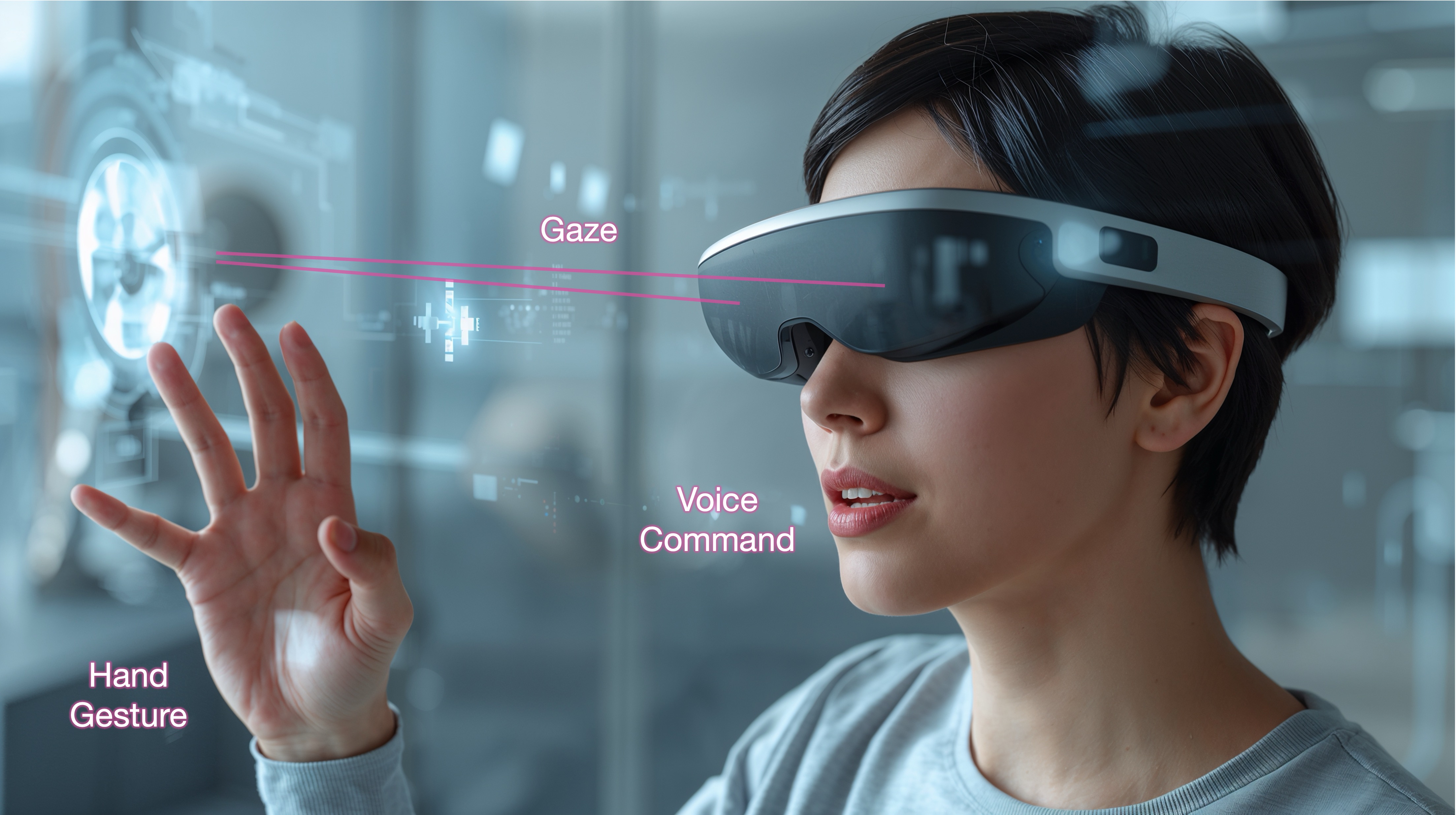
Multimodal input refers to the use of multiple simultaneous or interchangeable input methods—such as voice commands, hand gestures, eye gaze, and physical controllers—to interact with augmented content in spatial AR environments. Multimodal interaction matters because it enables more natural, intuitive, and efficient communication between users and AR systems, empowering users to act in ways that best fit the context, their physical capabilities, or environmental constraints. By combining inputs intelligently, developers can create adaptive, context-aware interfaces that respond fluidly to user intent and elevate the overall immersive experience.
Definitions
-
Multimodal Input: The integration of two or more distinct input methods—such as gesture, speech, gaze, or controller—into a single interactive system. In AR, this allows users to combine inputs (e.g., look and speak) or switch fluidly between them to perform tasks in the most convenient way, enhancing interaction flexibility and reducing effort in complex tasks.
-
Input Modality: A specific channel or method through which a user provides input to the system, such as visual (gaze), auditory (voice), or tactile (gesture). Each modality engages different human senses or motor skills, and their combination can increase input flexibility and reduce cognitive effort, ultimately enhancing the user’s control and interaction experience.
-
Natural User Interface (NUI): An interface paradigm that leverages natural human behaviors and expressions (like talking, pointing, or looking) for input. NUIs aim to reduce the abstraction between user intent and system recognition, making AR interactions feel more organic, thus improving usability by aligning with how users naturally interact with the world.
-
Intent Recognition: The system’s ability to infer what the user wants to do based on multimodal cues. Accurate intent recognition is critical for delivering responsive and intuitive AR experiences, especially when inputs are imprecise or ambiguous, ensuring that the system can act in alignment with the user’s expectations even in dynamic environments.
-
Sensor Fusion: The technique of combining data from multiple input sensors—such as depth cameras, microphones, and eye trackers—to create a more accurate and reliable understanding of user actions. Sensor fusion improves robustness, reduces ambiguity, and helps disambiguate conflicting signals across modalities, leading to more precise interactions and improved system reliability.
-
Context-Aware Input: Input that is interpreted with awareness of the surrounding environment, user activity, and system state. For example, a voice command may behave differently if the user is looking at a specific object, making the interaction more relevant and precise, and adapting the system’s response based on real-time situational factors.
-
Input Synchronization: The temporal coordination of multiple input signals that are meant to be interpreted together. For instance, when a user says “place here” while pointing, the system must link the speech with the gesture in time to determine the correct action, ensuring the system’s response aligns perfectly with the user’s intended interaction.
Design Principles
-
Complementarity: Modalities should enhance one another by covering each other’s weaknesses—e.g., using gaze for selection and voice for confirmation creates a more efficient input method than using either alone, leveraging the strengths of each modality to create a more intuitive and seamless experience.
-
Redundancy: Critical interactions should be accessible through multiple modalities so that users can choose the most convenient method—e.g., voice or gesture for the same command—especially important in variable environments, ensuring that users are not hindered by environmental constraints like noise or physical limitations.
-
Contextual Appropriateness: Modalities must suit the context of use. For instance, in a noisy factory, gesture might be preferred over voice, while in hands-busy scenarios, gaze or voice becomes more practical, ensuring that the chosen modality optimally matches the user’s environment and task at hand.
-
Responsiveness and Latency: Multimodal systems must process input quickly and synchronize responses to maintain immersion. Even slight delays can break user flow or cause confusion in high-tempo tasks, so the system must prioritize low latency to preserve smooth, real-time interaction.
-
Learnability and Intuitiveness: Inputs should align with user expectations and mimic real-world behaviors where possible. For example, reaching to grab a hologram should mimic the physical motion of grabbing an object, ensuring that the interaction feels natural and requires minimal effort to understand and use.
-
Error Tolerance and Recovery: The system must gracefully handle missed or incorrect inputs and provide users with clear feedback and options to retry or cancel actions without friction, helping to avoid frustration and ensuring users can quickly get back on track.
-
Modality Independence and Switching: Users should be able to switch seamlessly between input modes depending on preference or circumstance. This flexibility supports accessibility and enables more personalized interaction styles, giving users greater control over how they engage with the system.
Controllers
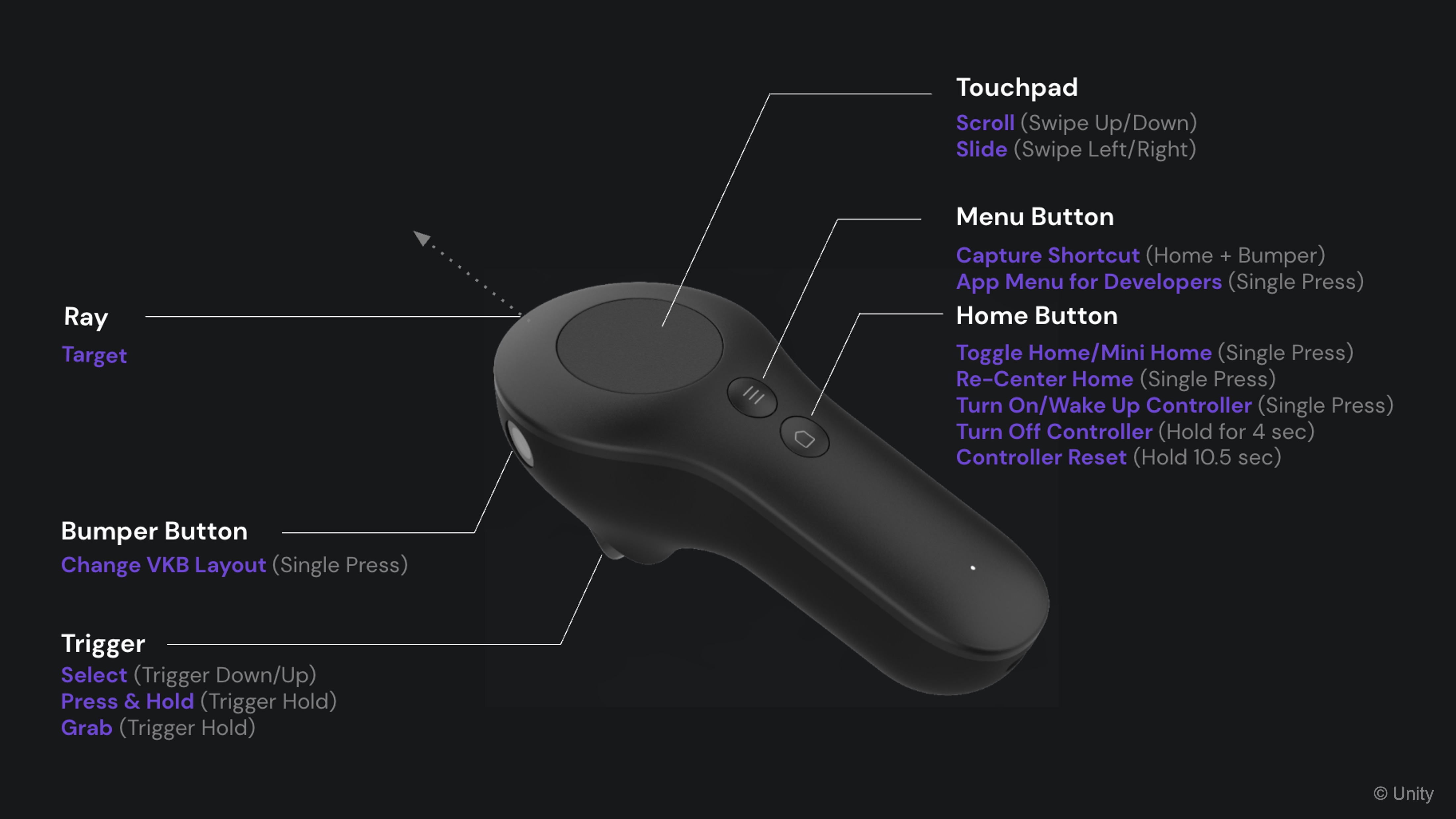
Controllers are handheld input devices that provide precise, tactile interaction in spatial AR environments. These devices are essential in spatial AR systems, enabling users to interact with virtual objects using hardware buttons, motion sensors, and touch interfaces. Controllers offer more stability and fine control compared to hands-free methods like gesture or gaze input—especially in environments where precision and reliability are critical, such as engineering applications. In Magic Leap 2, the controller is especially useful for interacting with spatial elements in augmented environments. The Magic Leap 2 controller has five main controls:
- Touchpad: Supports position sensing, pressure, and gestures like tap, swipe, and scroll.
- Bumper: A digital button with a click action.
- Trigger: An analog input (value ranges from 0–1) for variable control (e.g., scaling objects).
- Menu Button: Application-defined use for toggling interfaces or switching modes.
- Home Button: Reserved by the system for exiting the app (not available for custom use). While the Home Button is not available for customization, all other inputs—including controller pose (position and rotation), button presses, and gestures—can be accessed at runtime and mapped to drive complex application logic.
Core Concepts
-
MagicLeapInputs: AnInput Action Assetthat contains mappings for Magic Leap 2 controller, HMD pose tracking, eye tracking, and hand gestures. It centralizes all supported input modalities for use in your Unity application. -
ControllerActions: A sub-object ofMagicLeapInputsthat specifically provides access to controller-related actions such as button presses, touchpad gestures, trigger values, and pose tracking. -
InputAction.CallbackContext: A data structure passed to input event handler methods. It contains context about the input event—such as timing, value, and control state—that can be used to drive in-app interactions. -
Enable()/Disable(): Lifecycle methods used to start and stop the input system. CallingEnable()begins listening for input events, whileDisable()suspends input processing. -
Performed,Canceled,Started: These are the phases of an input action’s lifecycle.Startedis triggered when an input begins (e.g., trigger pulled slightly),Performedis triggered when the action completes (e.g., button fully pressed), andCanceledoccurs when the input is interrupted or incomplete.
Review this Magic Leap documentation to learn more about the controller.
Controller Components
The Controller GameObject of Magic Leap 2’s ML Rig is preconfigured with components that handle tracking, input, ray-based interactions, and visual feedback using Unity’s XR Interaction Toolkit and Magic Leap Input System. This GameObject represents the user’s physical controller in the virtual environment. It includes the following critical components:
-
Tracked Pose Driver (Input System): This component ensures the virtual controller accurately reflects your real-world movement. It tracks the position and rotation of the controller using Unity’s Input System. Make sure bothPositionandRotationare enabled.Update Typeshould generally be set toUpdateorUpdate and Before Renderfor smooth tracking.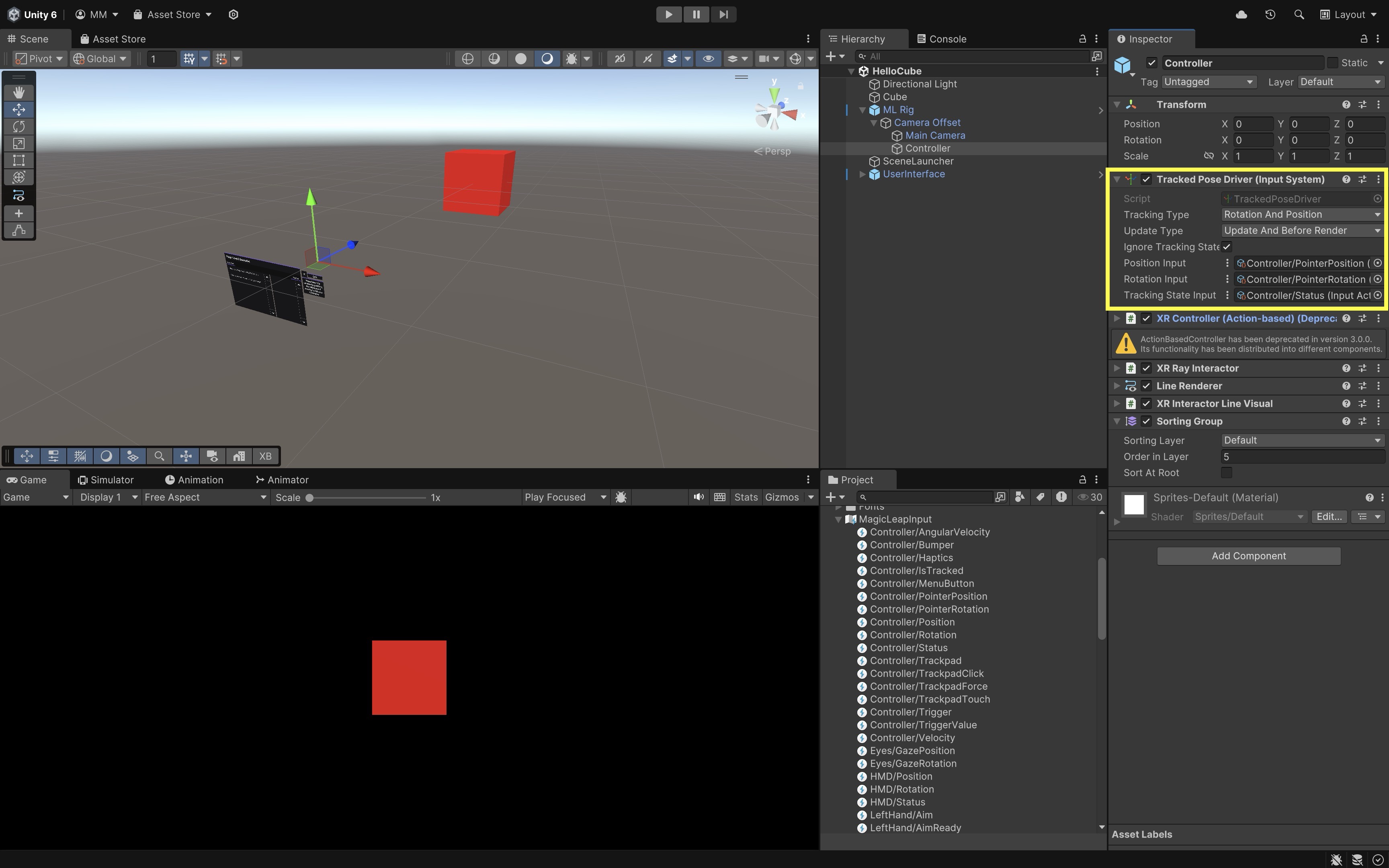
-
XR Controller (Action-based): This component enables logic for “what should happen when the trigger is pulled or the bumper is pressed.” It manages input bindings (trigger, bumper, touchpad, etc.) using Unity’s Input System.Select Actionis often mapped toTrigger.Activate Actionis optionally mapped toBumper.UI Press Actionis optional for UI elements. It uses theMagicLeapInputsasset for action definitions.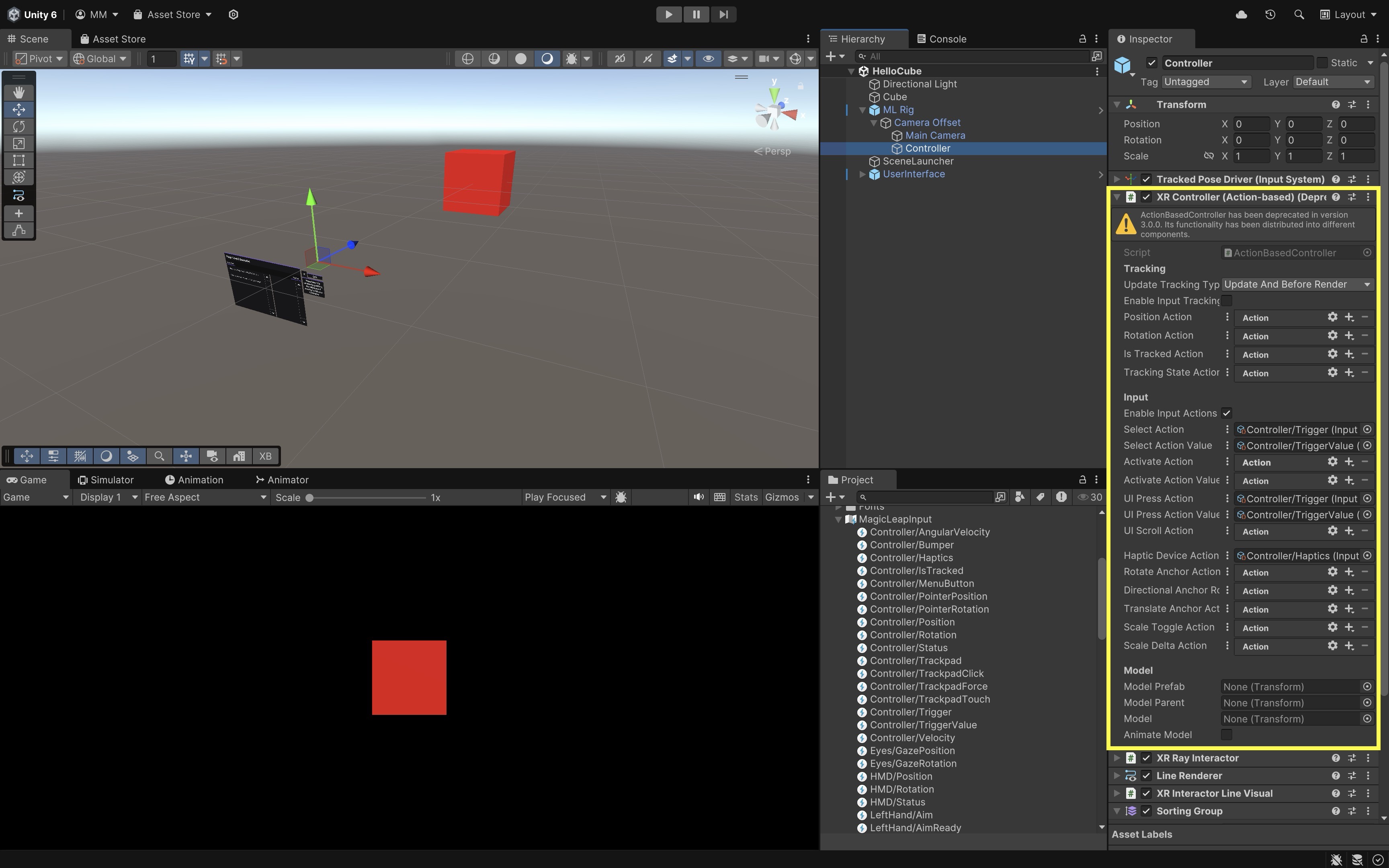
-
XR Ray Interactor: Think of this component as your virtual “finger” — it’s how you point and click in XR. It projects an interactive ray (laser pointer) into the scene for selecting 3D objects or UI.Interaction Layer Maskcontrols which objects the ray can interact with.Raycast Configurationspecifies key settings likeLine TypeandRaycast Mask. Hover and select options are available for targeting objects that useXR Interactablecomponents.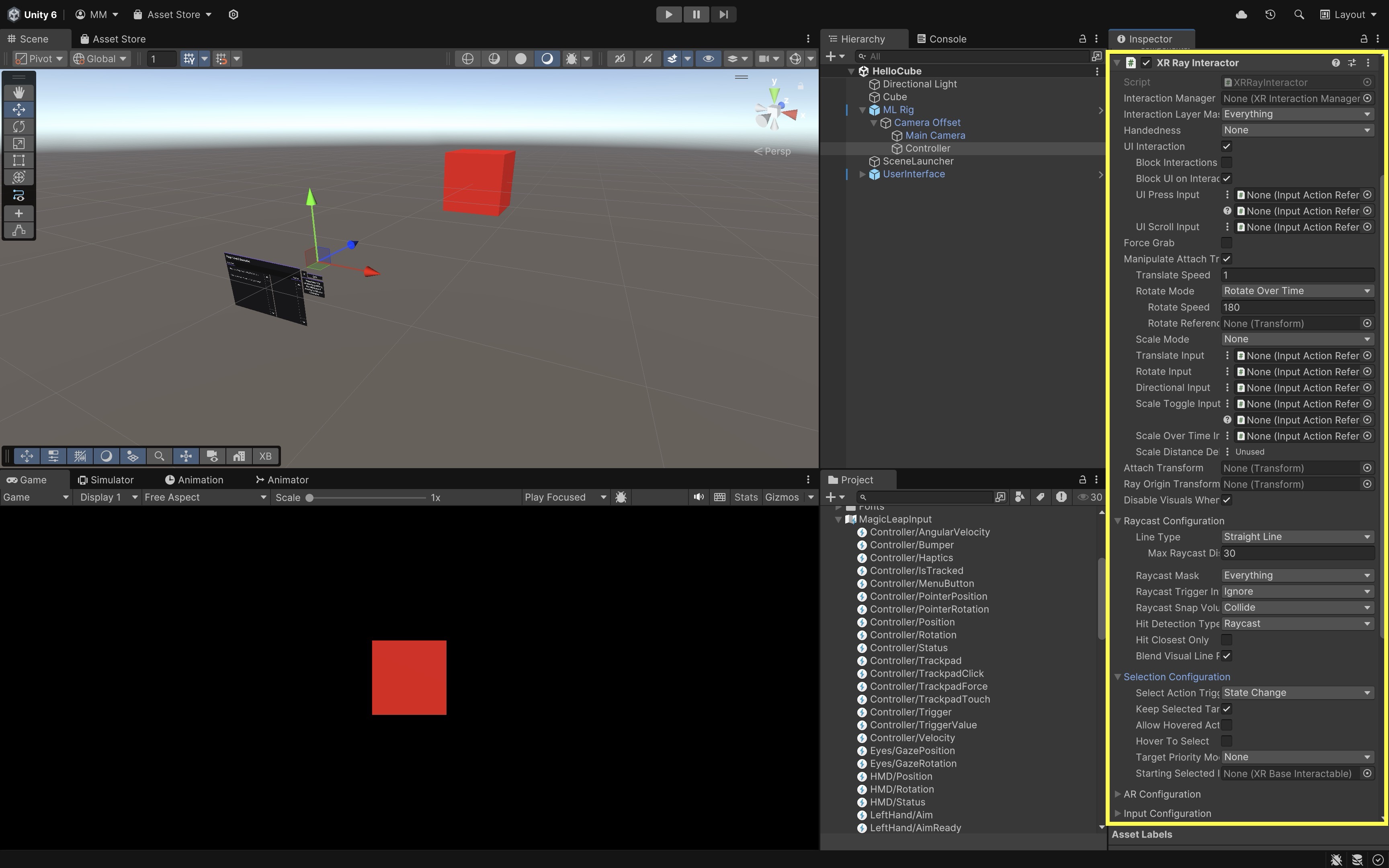
-
Line Renderer: This component is used to display a visible beam from the controller to wherever it’s pointing. It visually renders the line that represents the raycast.Color Gradientadds color transitions or highlighting.Materialcontrols visual appearance (e.g., glowing line).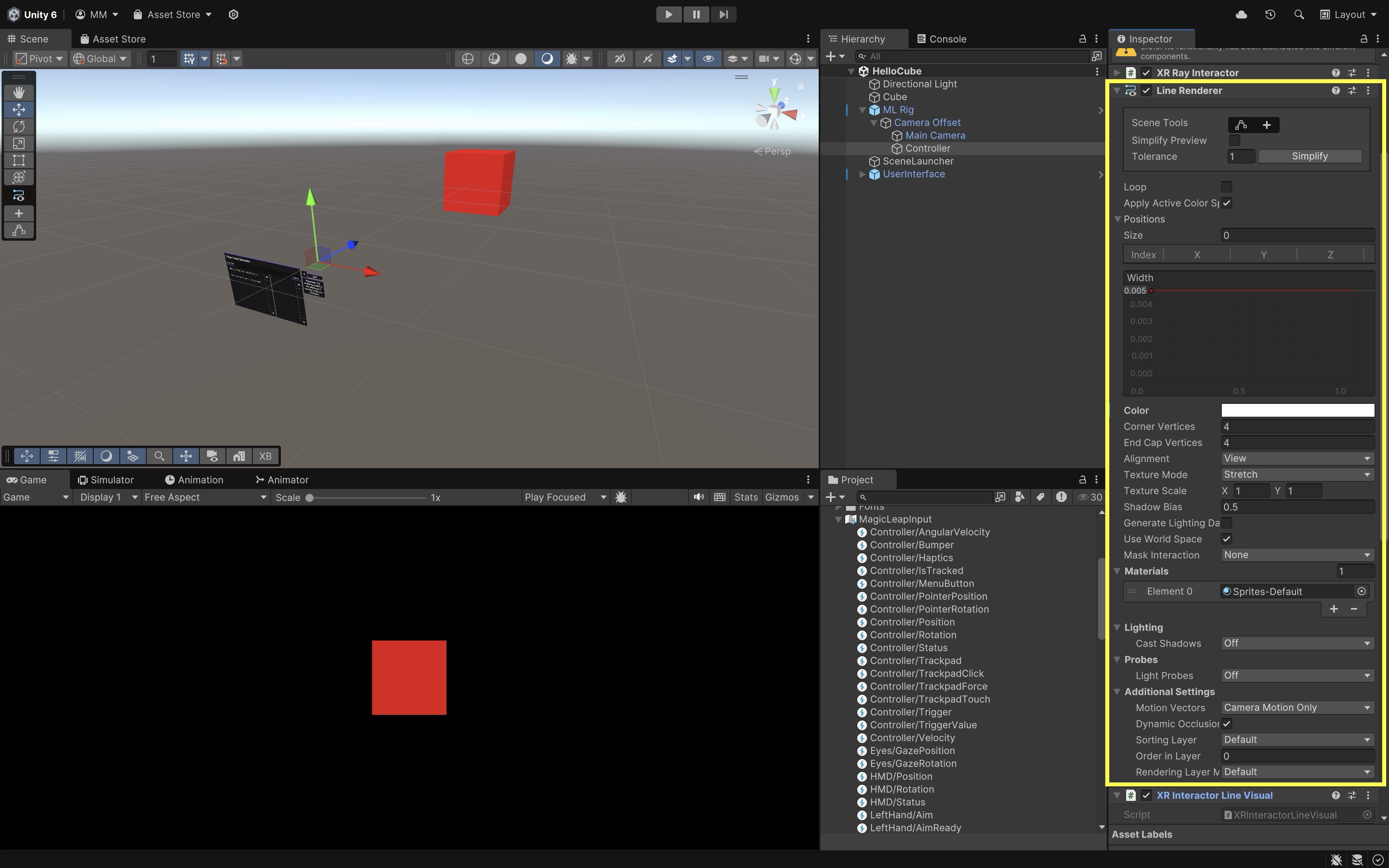
-
XR Interactor Line Visual: This component makes the interaction ray look and feel responsive — it adds polish and feedback to user input. It provides a dynamic and styled visual response to interactions (e.g., when hovering or selecting). Modifies the appearance of the line during interactions. Can enable reticle, fade effects, and hit point visuals. It works in conjunction with theLine RendererandXR Ray Interactor.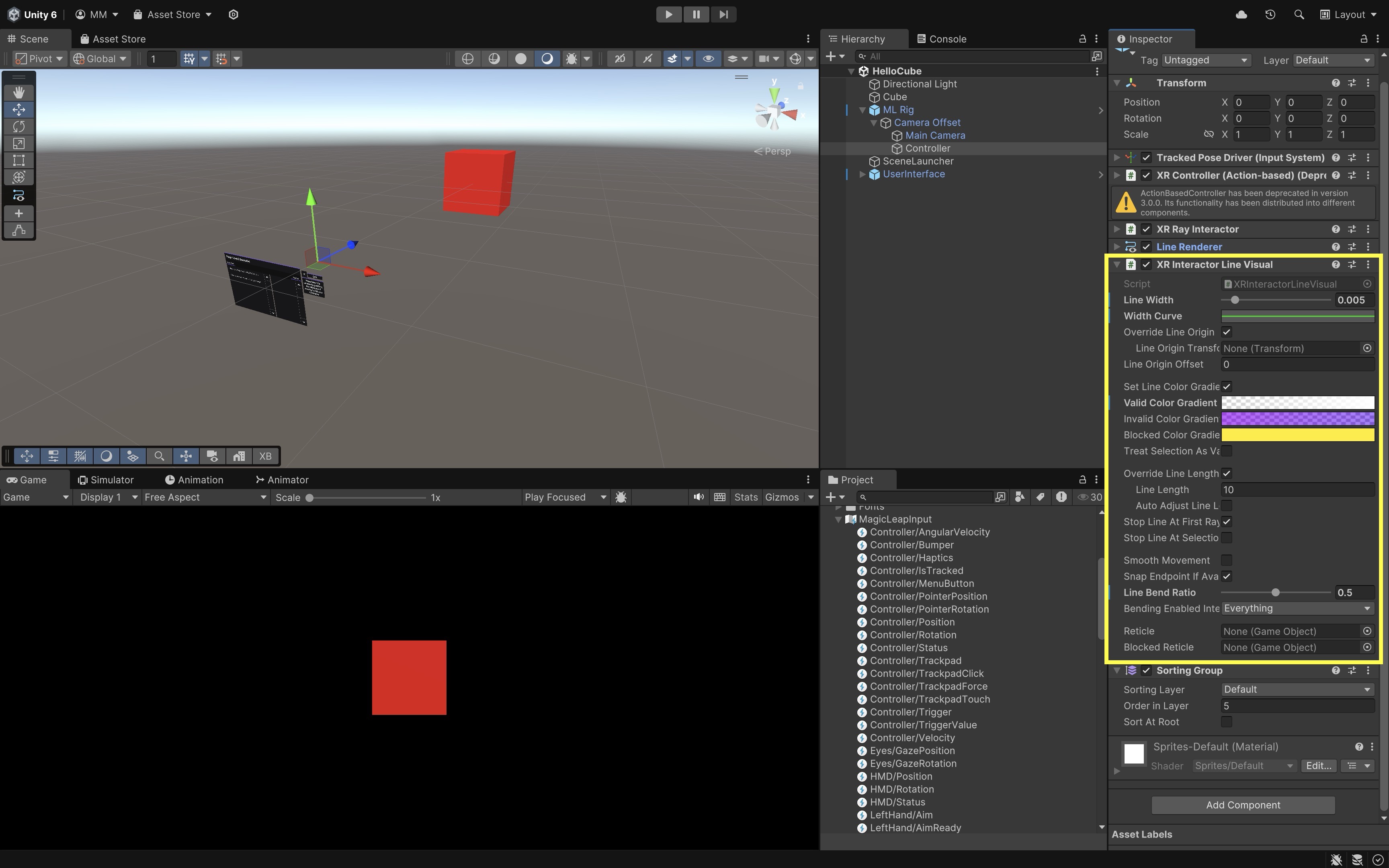
Custom Controller Inputs
Now, let’s use the preconfigured controller in the HelloCube.unity scene to trigger simple visual responses, like changing the color of a drone GameObject, applying a scaling effect, and rotating it using the touchpad. We will use Bumper to apply the scaling effect, Touchpad to rotate the drone based on swipe direction, and Trigger to change the drone’s color, specifically the first material (Element 0) of the Body and Fan Base child objects of the drone. Note that this tutorial assumes you are using the Magic Leap examples project, which includes a ready-to-use XR Rig and controller setup.
- Configure the Scene:
- Open the
HelloCube.unityscene. - Save it as
MultimodalInput.unityinAssets > Scenes > XRE Tutorials. - Remove the
CubeGameObject. - Drag and drop
Drone Assembly InputsfromAssets > Drone > Prefabsinto the scene and place it visibly in front of the camera. The drone will be the target of your controller interactions.
- Open the
- Assign Input Bindings with
MagicLeapInputs:- Open the
MagicLeapInputsassetAssets > MagicLeapInputs.inputactions. - Explore the
Controlleraction map. Triggeris set to analog press input (float value).Bumperis set to digital button press (bool).TouchpadPositionis set to 2D touchpad input (Vector2).
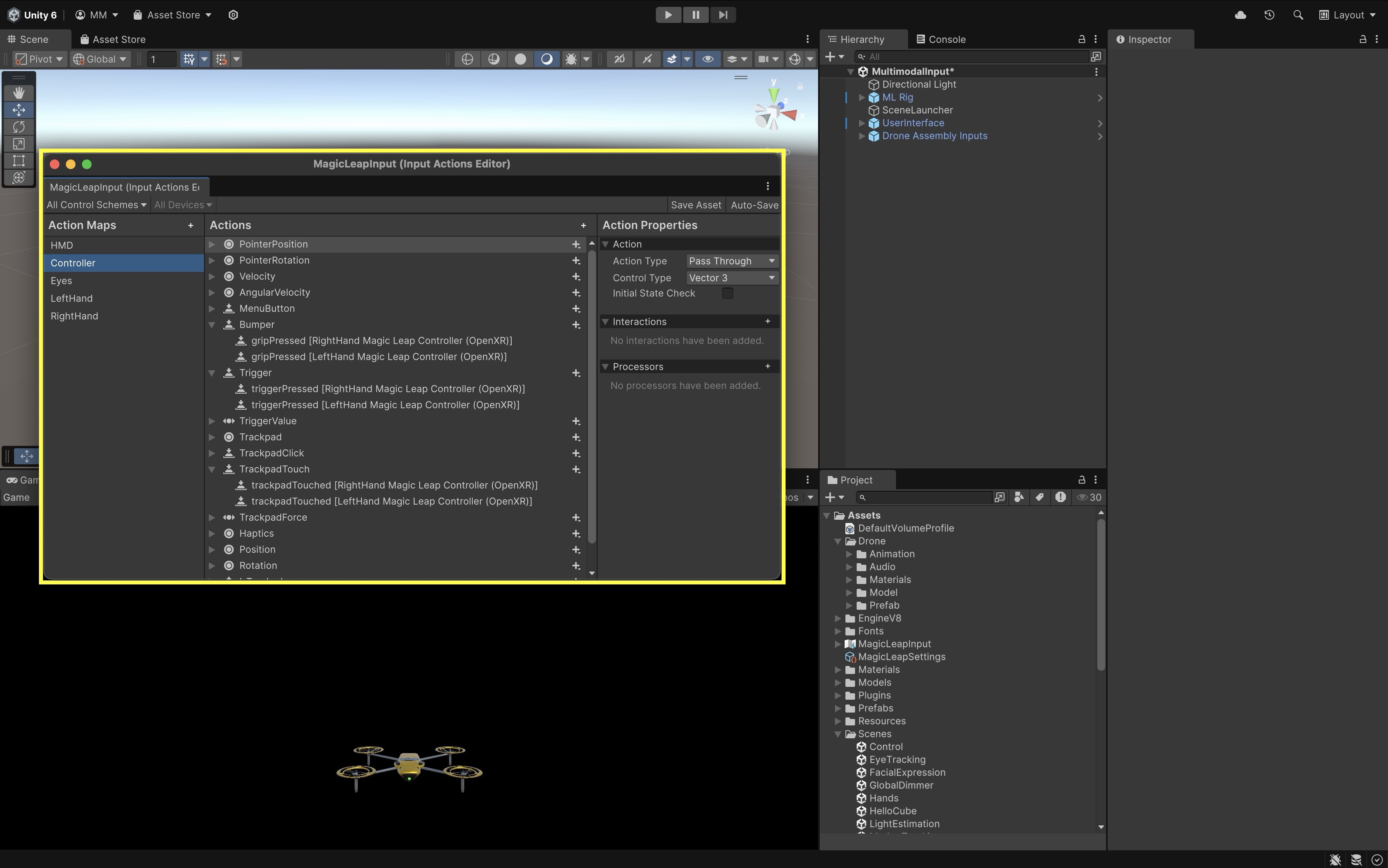
The Magic Leap SDK provides a ready-made Input Actions asset called
MagicLeapInputs, which maps physical controller inputs to Unity events. No changes are needed here — the controller is already using these bindings. - Open the
- Create the Interaction Script:
- Create a new C# script named
ControllerInput.cs.
using UnityEngine; using UnityEngine.InputSystem; public class ControllerInput : MonoBehaviour { [Header("Drone Setup")] public GameObject droneObject; public Renderer bodyRenderer; public Renderer fanBaseRenderer; [Header("Control Settings")] public float rotationSpeed = 60f; public float scaleUpFactor = 1.2f; public float scaleDuration = 0.2f; private Material bodyMat0; private Material fanBaseMat0; private MagicLeapInputs mlInputs; private MagicLeapInputs.ControllerActions controller; void Start() { // Validate assignments if (droneObject == null || bodyRenderer == null || fanBaseRenderer == null) { Debug.LogError("Drone or renderer references are not assigned."); return; } // Cache Material[0] for both renderers bodyMat0 = bodyRenderer.materials[0]; fanBaseMat0 = fanBaseRenderer.materials[0]; // Setup input system mlInputs = new MagicLeapInputs(); mlInputs.Enable(); controller = new MagicLeapInputs.ControllerActions(mlInputs); controller.Trigger.performed += OnTriggerPressed; controller.Bumper.performed += OnBumperPressed; controller.Bumper.canceled += OnBumperReleased; controller.TouchpadPosition.performed += OnTouchpadSwipe; } private void OnTriggerPressed(InputAction.CallbackContext ctx) { // Change Material[0] color of Body and Fan Base Color newColor = new Color(Random.value, Random.value, Random.value); bodyMat0.color = newColor; fanBaseMat0.color = newColor; } private void OnBumperPressed(InputAction.CallbackContext ctx) { // Scale up drone droneObject.transform.localScale = Vector3.one * scaleUpFactor; Invoke(nameof(ResetScale), scaleDuration); } private void OnBumperReleased(InputAction.CallbackContext ctx) { ResetScale(); } private void ResetScale() { droneObject.transform.localScale = Vector3.one; } private void OnTouchpadSwipe(InputAction.CallbackContext ctx) { Vector2 swipe = controller.TouchpadPosition.ReadValue<Vector2>(); float rotationY = swipe.x * rotationSpeed * Time.deltaTime; droneObject.transform.Rotate(Vector3.up, rotationY, Space.World); } void OnDisable() { controller.Trigger.performed -= OnTriggerPressed; controller.Bumper.performed -= OnBumperPressed; controller.Bumper.canceled -= OnBumperReleased; controller.TouchpadPosition.performed -= OnTouchpadSwipe; } } - Create a new C# script named
- Configure the Script:
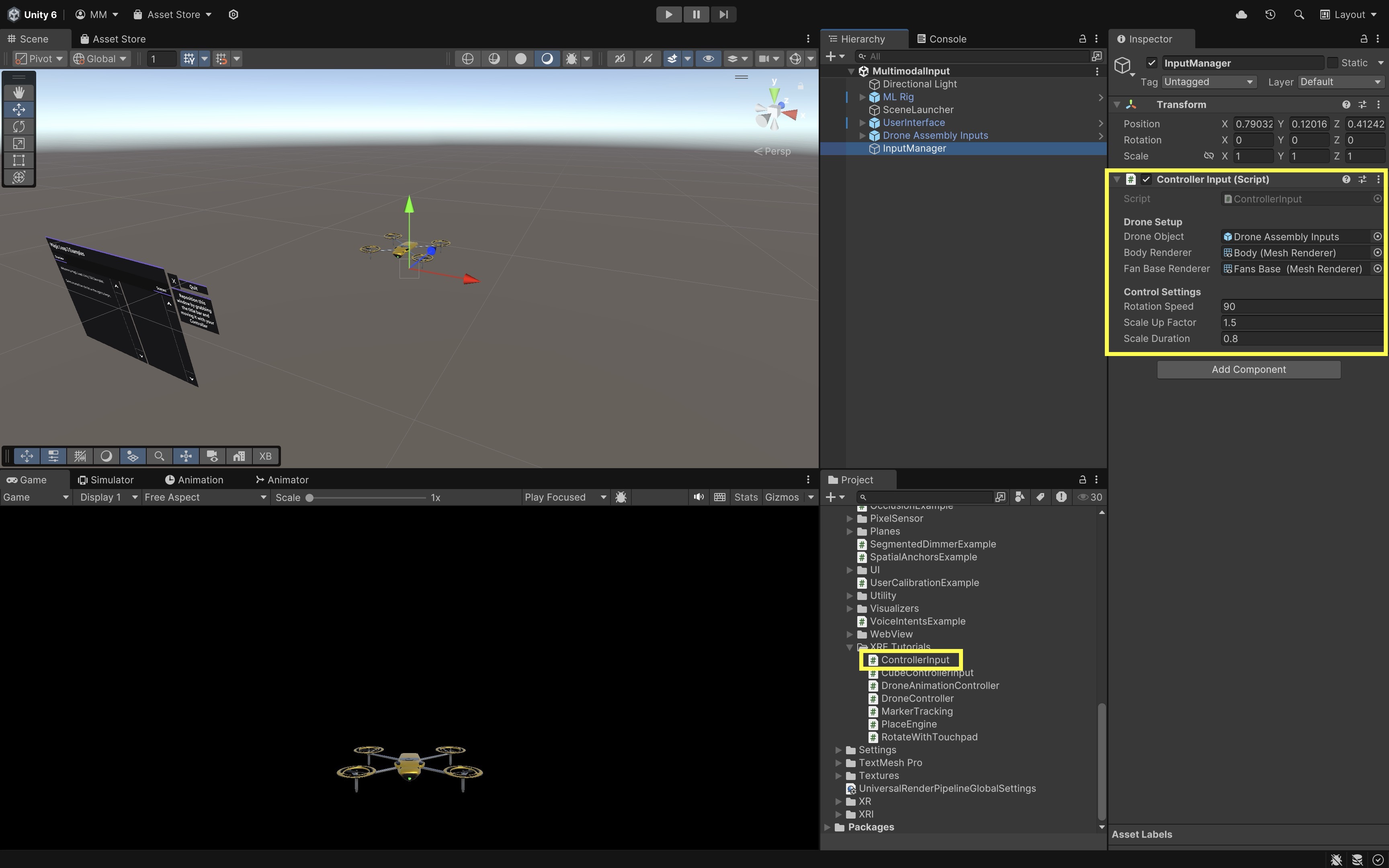
- In the
Hierarchy, right-click and selectCreate Empty. Rename toInputManager. - Drag and drop the
ControllerInput.csscript onto theInputManagerGameObject. - Go to the
Inspector. - Drag in
Drone Assembly Inputsprefab intoDrone Object,Bodychild intoBody Renderer, andFan Basechild intoFan Base Renderer. - Adjust
Rotation Speed,Scale Up Factor, andScale Durationas needed.
- In the
- Play and Test:
- Build and deploy the scene to your Magic Leap 2 device.
- Launch the app.
- Press the Trigger button to randomly change the color of Material Element 0 on the
BodyandFan Baseparts of the drone. - Press and hold the Bumper button to apply a temporary scaling effect. The drone will scale up slightly while the bumper is pressed and return to its original size when released.
- Swipe left or right on the Touchpad to rotate the entire drone horizontally around the Y-axis.
Functions like
OnTriggerPressed,OnTouchpadSwipe, andOnBumperPressedprovide a flexible foundation for handling controller-based interactions in Magic Leap 2 applications. These input callbacks can be used in your future development projects to trigger animations or mechanical simulations, interact with UI panels or AR tooltips, grab, place, or manipulate virtual objects, or control audio playback or visual effects.
Voice Intent
Voice intents or commands allow users to interact with spatial AR systems through spoken language, offering a hands-free, intuitive, and natural input modality. This form of input is particularly powerful in wearable AR experiences, where users may need to operate in hands-busy, real-world environments, require fast access to core commands or UI functions without navigating complex menus, have limited mobility or cannot use traditional inputs. Voice input supports structured command phrases, enabling applications to trigger specific actions, control interfaces, or manipulate objects without physical touch. On Magic Leap 2, voice can also be fused with gaze or hand tracking to clarify user intent and facilitate multimodal interaction that mirrors real-world human communication.

Offline Speech Recognition in XR
This tutorial shows you how to build an offline speech-to-text system in Unity for Meta Quest 3 (or any other device) using the OpenAI Whisper model running locally with Unity Sentis. Unlike cloud speech APIs, this solution works without Internet, has zero server latency, keeps user speech private, and runs fully on-device. You will integrate Whisper into Unity using an existing project, then extend it with a custom VoiceCommandActions system that allows the user to change the colors of scene objects using natural spoken language. This demonstrates how offline NLP can dramatically improve immersion and enable more intuitive interactions inside VR/AR worlds.
OpenAI Whisper
Whisper is a multilingual automatic speech recognition (ASR) system trained on 680,000 hours of speech data. Because the dataset is so large and diverse, Whisper is unusually robust to different accents, background noise, technical vocabulary, and non-English languages. The Whisper Tiny is lightweight and optimized for fast on-device inference, making it perfect for hardware like Meta Quest. Although smaller models may make occasional mistakes, Whisper Tiny is still very effective for general-purpose speech commands, especially when paired with natural-language keyword detection. Whisper uses an encoder–decoder Transformer:
- Audio → log-Mel spectrogram. The log-Mel spectrogram converts raw audio into a 2D time-frequency representation that highlights perceptually important frequencies, making speech patterns easier for neural networks to interpret.
- Spectrogram → Encoder. The encoder takes the spectrogram and transforms it into a compact, high-level latent representation that captures the essential structure and meaning of the audio signal.
- Decoder → Text output tokens. The decoder reads the encoder’s latent representation and predicts the sequence of text tokens, effectively turning the learned audio features into human-readable transcription.
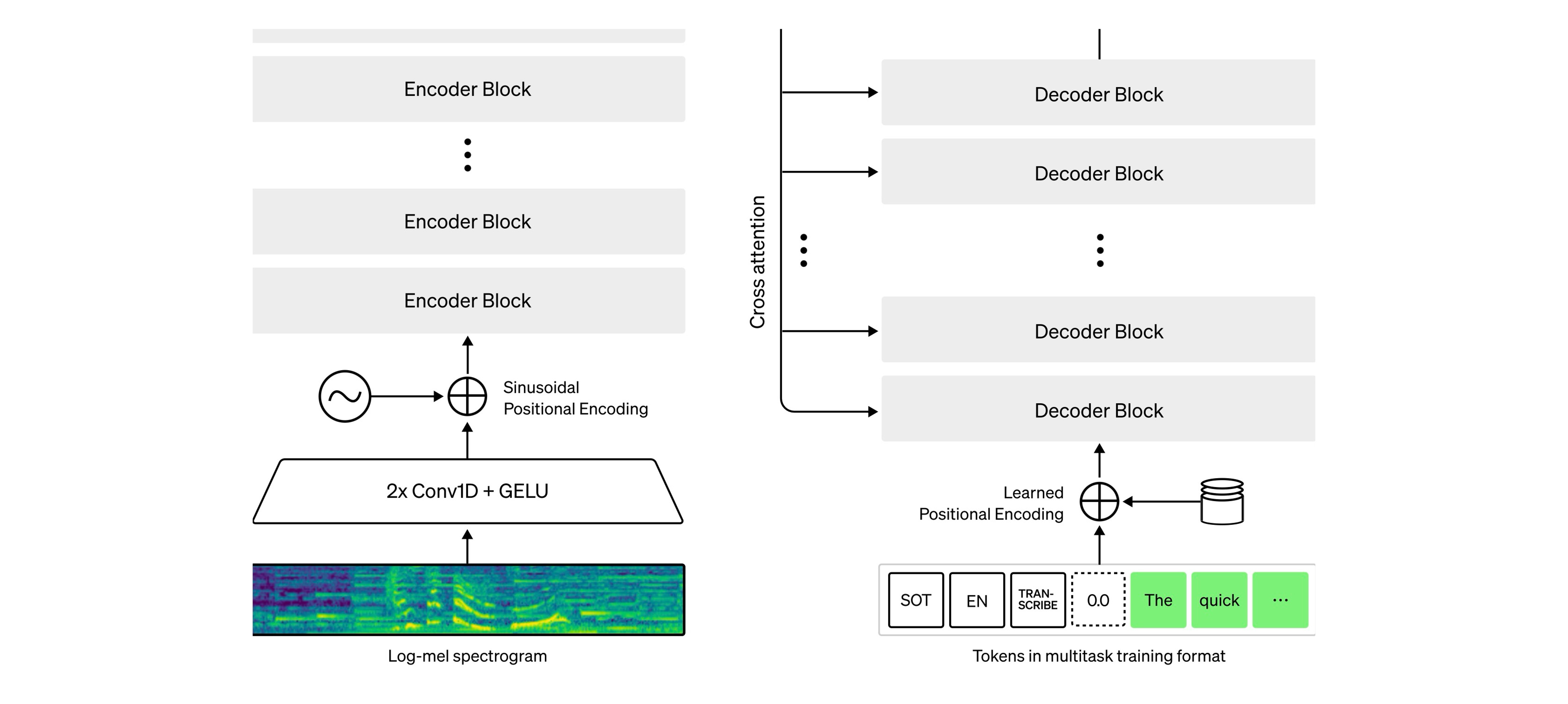
To learn more about Whisper and access the code, visit this GitHub repository.
Unity Sentis
Sentis is Unity’s machine-learning inference runtime. It allows you to load ONNX models directly inside Unity, run neural networks on GPU or CPU, perform all inference offline, and deploy AI features directly to VR hardware like Meta Quest. The Sentis workflow is as follows:
- Import model assets (ONNX → ModelAsset)
- Convert input data into tensors
- Create a Worker (inference engine)
- Schedule the model
- Retrieve the output tensor
Because Sentis runs everything locally, it preserves user privacy and makes responses instantaneous—ideal for immersive XR experiences. To learn more about Sentis, review this Unity Documentation and this Hugging Face page.
Sample Unity Project
We will be using an existing Unity project by Ludic Worlds (all credits go to the authors), which provides a ready-to-use implementation of Whisper Tiny converted to Sentis. This saves a great deal of time—no conversion, token handling, preprocessing, or low-level Whisper logic required. You simply plug your microphone input into the pipeline and read the text results. We will build our custom voice-command system on top of this transcription output. The project includes:
- Encoder, Decoder, Spectrograph Sentis models
- A JSON vocabulary file
- A UI system for displaying transcription
- A fully operational state machine (
RunWhisper) - Audio capture and processing logic
Download the Unity project from this Patreon page.
RunWhisper System
The RunWhisper script manages the entire audio → spectrogram → embedding → decoded text flow. It requires the following assets (already included in the project):
- decoderAsset: This is the Whisper transformer decoder that converts encoded audio features into text tokens.
- encoderAsset: This processes the log-Mel spectrogram and transforms it into a latent audio representation.
- spectroAsset: This generates the log-Mel spectrogram from raw audio input.
- vocabJson: This provides the mapping between token IDs and their corresponding text strings.
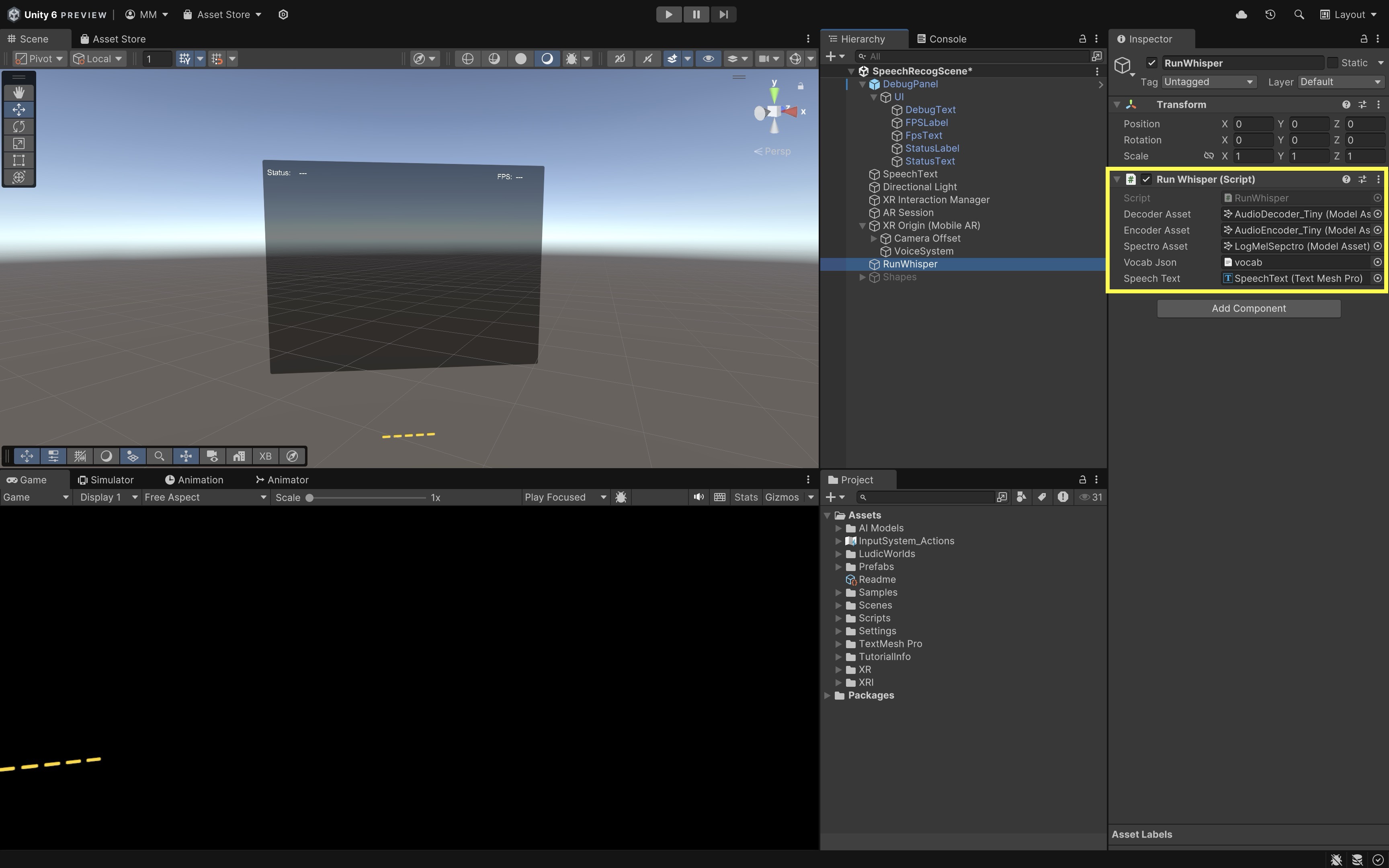
RunWhisperuses a state machine with stagesLoadDecoder→LoadEncoder→LoadSpectro→Ready→StartTranscription→RunSpectro→RunEncoder→RunDecoder. Once transcribed, Whisper updatesSpeechText.
Natural-Language Commands
Now let’s add a script not included in the original project, which continuously reads Whisper’s most recent transcript and searches for a shape keyword (cube, sphere, capsule, cylinder) and a color keyword (red, blue, green, yellow, etc.). If both appear in the spoken sentence, it updates the material color of the corresponding primitive. This approach is flexible, fast, easy to extend, and requires no custom LLM.
-
Why This Matters: Whisper outputs full natural language sentences, not structured commands.
Our script is designed to handle free-form speech, like “Could you turn the cube blue?” “I’d like the sphere to be orange.” or “Make it yellow—the capsule I mean.” As long as the sentence contains both a recognized shape and color, the command works. - How It Works Internally:
- Every frame, the script reads
whisper.SpeechText.text. - If the text changed since last frame, it processes it.
- It checks dictionaries
shapeLookupandcolorLookup. - It identifies the matching shape + color.
- It sets
renderer.material.color.
- Every frame, the script reads
- The
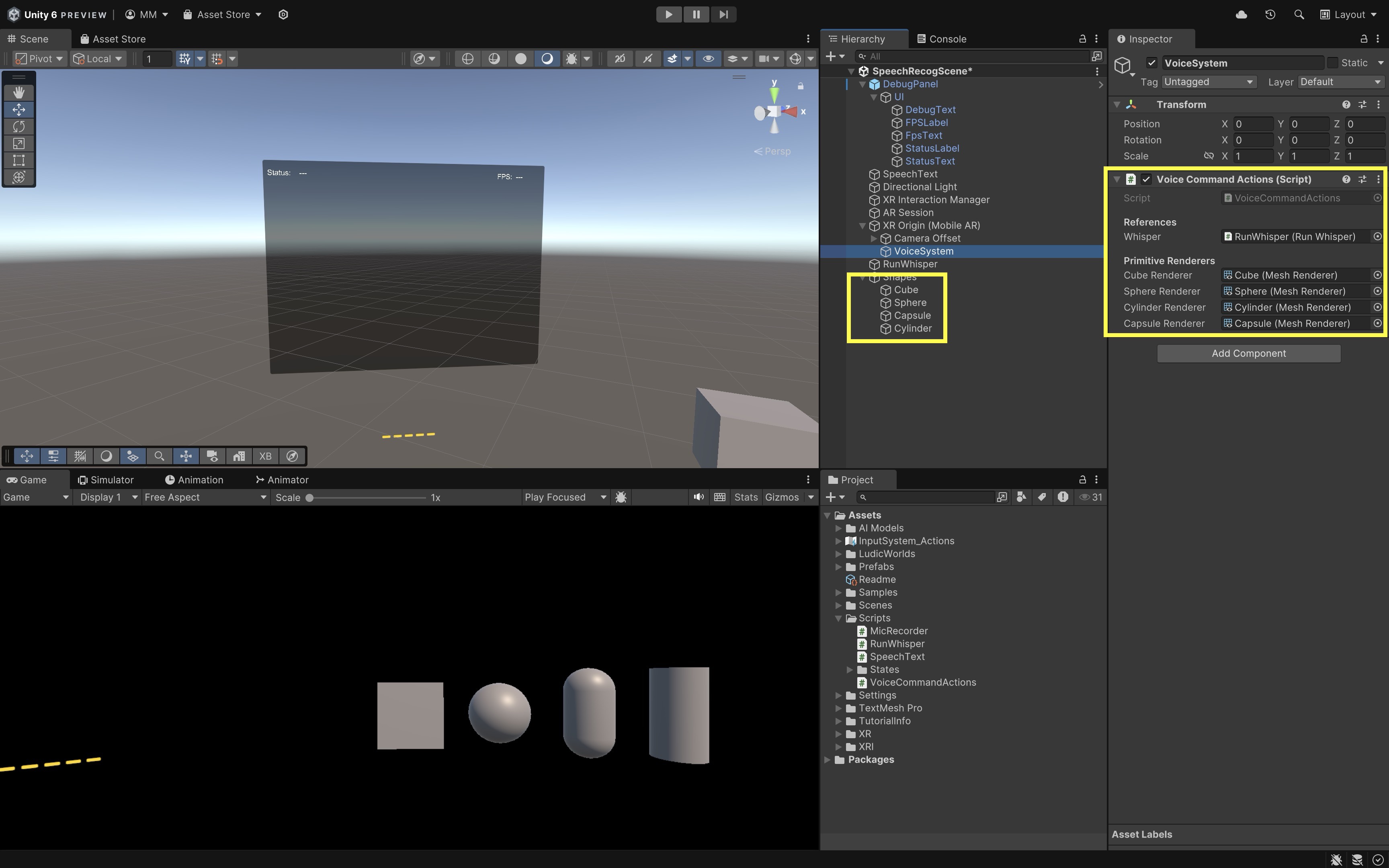
VoiceCommandActionsScript:using UnityEngine; using System.Collections.Generic; public class VoiceCommandActions : MonoBehaviour { [Header("References")] public RunWhisper whisper; [Header("Primitive Renderers")] public Renderer cubeRenderer; public Renderer sphereRenderer; public Renderer cylinderRenderer; public Renderer capsuleRenderer; private string lastHandledText = ""; // Lookup tables — super easy to extend private Dictionary<string, Renderer> shapeLookup; private Dictionary<string, Color> colorLookup; private void Awake() { // SHAPES shapeLookup = new Dictionary<string, Renderer> { { "cube", cubeRenderer }, { "sphere", sphereRenderer }, { "cylinder", cylinderRenderer }, { "capsule", capsuleRenderer } }; // COLORS – add as many as you want easily colorLookup = new Dictionary<string, Color> { { "red", Color.red }, { "blue", Color.blue }, { "green", Color.green }, { "yellow", Color.yellow }, { "white", Color.white }, { "black", Color.black }, { "purple", new Color(0.5f, 0f, 0.5f) }, { "orange", new Color(1f, 0.5f, 0f) }, { "pink", new Color(1f, 0.4f, 0.7f) }, { "brown", new Color(0.4f, 0.25f, 0.1f) }, { "gray", Color.gray }, }; } private void Update() { if (whisper == null || whisper.SpeechText == null) return; if (!whisper.IsReady) return; string currentText = whisper.SpeechText.text; if (string.IsNullOrEmpty(currentText)) return; if (currentText == lastHandledText) return; lastHandledText = currentText; HandleTranscript(currentText.ToLowerInvariant()); } private void HandleTranscript(string text) { Debug.Log($"Voice command: {text}"); Renderer targetRenderer = null; Color targetColor = Color.white; bool foundShape = false; bool foundColor = false; // Search for shape keywords foreach (var kvp in shapeLookup) { if (text.Contains(kvp.Key)) { targetRenderer = kvp.Value; foundShape = true; break; } } // Search for color keywords foreach (var kvp in colorLookup) { if (text.Contains(kvp.Key)) { targetColor = kvp.Value; foundColor = true; break; } } // Must have BOTH if (foundShape && foundColor && targetRenderer != null) { SetColor(targetRenderer, targetColor); } else { Debug.Log("Command ignored: requires both a shape and a color."); } } private void SetColor(Renderer renderer, Color color) { renderer.material.color = color; } } - How to Set It Up:
- Create an empty GameObject named
VoiceSystem. - Attach
VoiceCommandActions.csto it. - Create the following primitive 3D objects:
Cube,Sphere,Cylinder, andCapsule. - In the
Inspector, assign thePrimitive RenderersandRunWhisper.
- Create an empty GameObject named
Test the App on Meta Quest 3
Deploy to the headset. Once the app is running on your Quest 3, you control voice input with the triggers. Hold the left trigger to record your speech. Release the left trigger, then press the right trigger to process the audio through Whisper. The transcription will appear on-screen, and if it contains both a recognized shape and color, the corresponding object will update immediately. Try natural commands such as:
- “Make the cube red.”
- “Turn the sphere blue.”
- “Paint the capsule yellow.”
- “Change the cylinder to green.”
Whisper Tiny runs fully offline through Sentis, so responses should feel fast and seamless inside XR:
On Meta Quest devices, developers can also implement voice commands using Meta’s official Voice SDK, which is powered by Wit.ai. This option provides cloud-based speech recognition and built-in intent parsing (entities, traits, command matching). It is easier to set up for network-connected apps, but it requires an internet connection and routes audio to Wit.ai’s servers for processing. Because of this, it is not suitable for fully offline applications or scenarios with strict on-device privacy requirements—cases where a local ASR model like Whisper + Unity Sentis is preferred.
Magic Leap Voice Intents
Let’s extend the functionality of your InputManager system from the previous example to support voice input using Magic Leap Voice Intents. Voice input will serve as a redundant input modality that mirrors controller inputs:
- “Change Color” → same as controller Trigger
- “Scale” → same as controller Bumper
- “Turn” → same as controller Touchpad
This design approach gives users the flexibility to interact using whichever input modality best fits their context — voice or controller — and reinforces the principles of multimodal and redundant interaction in extended reality environments. You will also add two new voice commands. Saying “Animate” will step through the drone’s disassembly animation (one part per command), while saying “Reset” will reassemble the drone. Note that the Drone Assembly Inputs prefab must already be present in your scene and configured.
Definitions
MLPermissions: Magic Leap API for handling runtime permissions like microphone access. It ensures that the application has the necessary user consent to access sensitive features like voice input.VOICE_INPUT: A required permission to enable voice command input. Without this permission, voice-related functionality will be disabled, even if intents are configured correctly.MLVoice: The main namespace for voice intent handling and event dispatch. It provides the core methods to initialize, subscribe to, and manage voice recognition events in real time.MLVoiceIntentsConfiguration: A ScriptableObject used to define custom voice command phrases and their corresponding event IDs. This configuration allows developers to map specific spoken phrases to actionable logic within their application.OnVoiceEvent: Event triggered when a registered voice command is successfully recognized. It returns a result containing the spoken text and associated event ID so that you can drive specific behaviors.SettingsIntentsLauncher: Utility to redirect users to enable voice input settings on their device. This is particularly useful if voice input is disabled at the system level and must be turned on manually for the app to function.
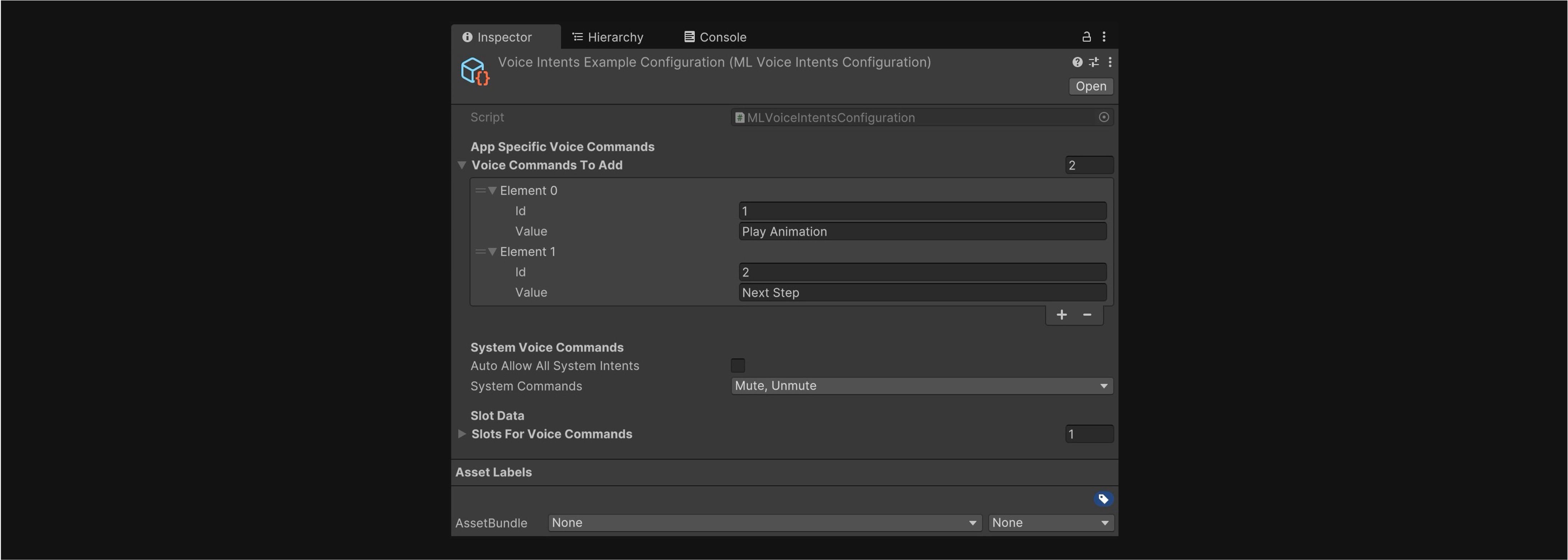
Review this Magic Leap documentation to learn more about voice intents.
Implementation
- Create a Voice Configuration File:
- Open the
MultimodalInput.unityscene. - In the
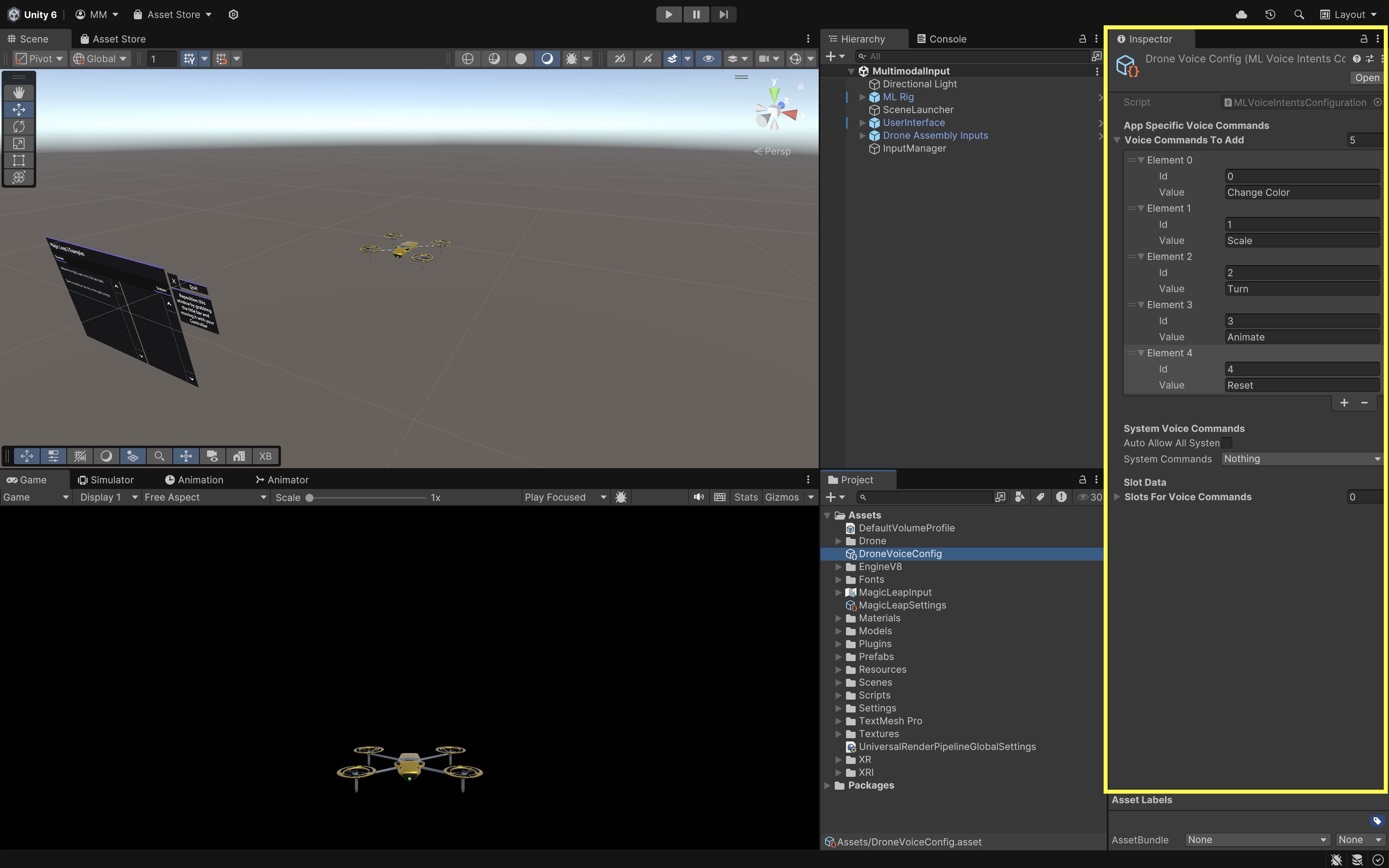
Projectwindow, right-click and go toCreate > Magic Leap > Voice Intents Configuration. - Name the new asset
DroneVoiceConfig.mlvoice. - Under
Voice Commands to Add, click the+button six times to add the following commands as ‘Value’ inputs (optionally, assign an ‘Id’ to each):Change Color,Scale,Turn,Animate, andReset. These are app-specific commands and will be matched exactly. Keep them lowercase or title case for clarity.
- Open the
- Create a Voice Command Controller Script:
- Create a new script in
Assets > Scripts > XRE Tutorials. - Name it
VoiceCommandController.csand paste the following code into it:
using MagicLeap.Android; using System.Collections; using System.Collections.Generic; using System.Linq; using UnityEngine; using UnityEngine.XR.MagicLeap; public class VoiceCommandController : MonoBehaviour { [Header("Drone Setup")] public GameObject droneObject; public Renderer bodyRenderer; public Renderer fanBaseRenderer; [Header("Animator")] public Animator droneAnimator; [Header("Voice Configuration")] public MLVoiceIntentsConfiguration voiceConfig; [Header("Rotation Settings")] public float rotationStepDegrees = 30f; [Header("Scaling Settings")] public float scaleUpFactor = 1.2f; public float scaleDuration = 0.3f; private Material bodyMat0; private Material fanBaseMat0; private bool isProcessing = false; private int animationStep = 0; private readonly string[] disassemblyTriggers = new string[] { "Fan 1", "Fan 2", "Fan 3", "Fan 4", "Fans Base", "Body" }; private void Start() { if (!Permissions.CheckPermission(Permissions.VoiceInput)) { Permissions.RequestPermission( Permissions.VoiceInput, OnPermissionGranted, OnPermissionDenied ); return; } if (!MLVoice.VoiceEnabled) { Debug.LogError( "Voice is not supported on this device." ); return; } bodyMat0 = bodyRenderer.materials[0]; fanBaseMat0 = fanBaseRenderer.materials[0]; MLResult result = MLVoice.SetupVoiceIntents(voiceConfig); if (result.IsOk) { isProcessing = true; MLVoice.OnVoiceEvent += OnVoiceCommand; } else { Debug.LogError( "Failed to set up voice intents: " + result ); } } private void OnVoiceCommand( in bool wasSuccessful, in MLVoice.IntentEvent voiceEvent ) { if (!wasSuccessful) return; switch (voiceEvent.EventName.ToLower()) { case "change color": ChangeDroneColor(); break; case "scale": ScaleDrone(); break; case "turn": RotateDrone(); break; case "animate": AnimateSequence(); break; case "reset": ResetAnimation(); break; default: Debug.Log( "Unrecognized command: " + voiceEvent.EventName ); break; } } private void ChangeDroneColor() { Color newColor = new Color( Random.value, Random.value, Random.value ); bodyMat0.color = newColor; fanBaseMat0.color = newColor; } private void ScaleDrone() { StopAllCoroutines(); StartCoroutine(ScaleRoutine()); } private IEnumerator ScaleRoutine() { droneObject.transform.localScale = Vector3.one * scaleUpFactor; yield return new WaitForSeconds(scaleDuration); droneObject.transform.localScale = Vector3.one; } private void RotateDrone() { droneObject.transform.Rotate( Vector3.up, rotationStepDegrees, Space.World ); } private void AnimateSequence() { if (animationStep < disassemblyTriggers.Length) { StartCoroutine(PlayAnimationSequence()); } } private IEnumerator PlayAnimationSequence() { while (animationStep < disassemblyTriggers.Length) { string triggerName = disassemblyTriggers[animationStep]; droneAnimator.SetTrigger(triggerName); animationStep++; yield return new WaitForSeconds(2f); // Delay between triggers } } private void ResetAnimation() { if (droneAnimator != null) { droneAnimator.ResetTrigger("Fan 1"); droneAnimator.ResetTrigger("Fan 2"); droneAnimator.ResetTrigger("Fan 3"); droneAnimator.ResetTrigger("Fan 4"); droneAnimator.ResetTrigger("Fans Base"); droneAnimator.ResetTrigger("Body"); droneAnimator.SetTrigger("Assembly"); } animationStep = 0; } private void OnDestroy() { if (isProcessing) { MLVoice.OnVoiceEvent -= OnVoiceCommand; MLVoice.Stop(); } } private void OnPermissionGranted(string permission) { Start(); // Retry setup } private void OnPermissionDenied(string permission) { Debug.LogError("Voice permission denied."); } } - Create a new script in
- Set Up the Voice Manager in the Scene:
- In the
Hierarchy, create an empty GameObject and rename it toVoiceManager. - Attach the
VoiceCommandControllerscript to theVoiceManager. - Go to the
Inspector. - Drag the
Drone Assembly Inputsprefab into theDrone Objectfield. - Expand the drone prefab and drag the
BodyGameObject into theBody Rendererfield. - Drag the
Fan BaseGameObject into theFan Base Rendererfield. - Drag the
Animatorcomponent from theDrone Assembly Inputsroot into theDrone Animatorfield. - Drag the
DroneVoiceConfig.mlvoicefile (created earlier) into theVoice Configfield. - Adjust other parameters as appropriate.
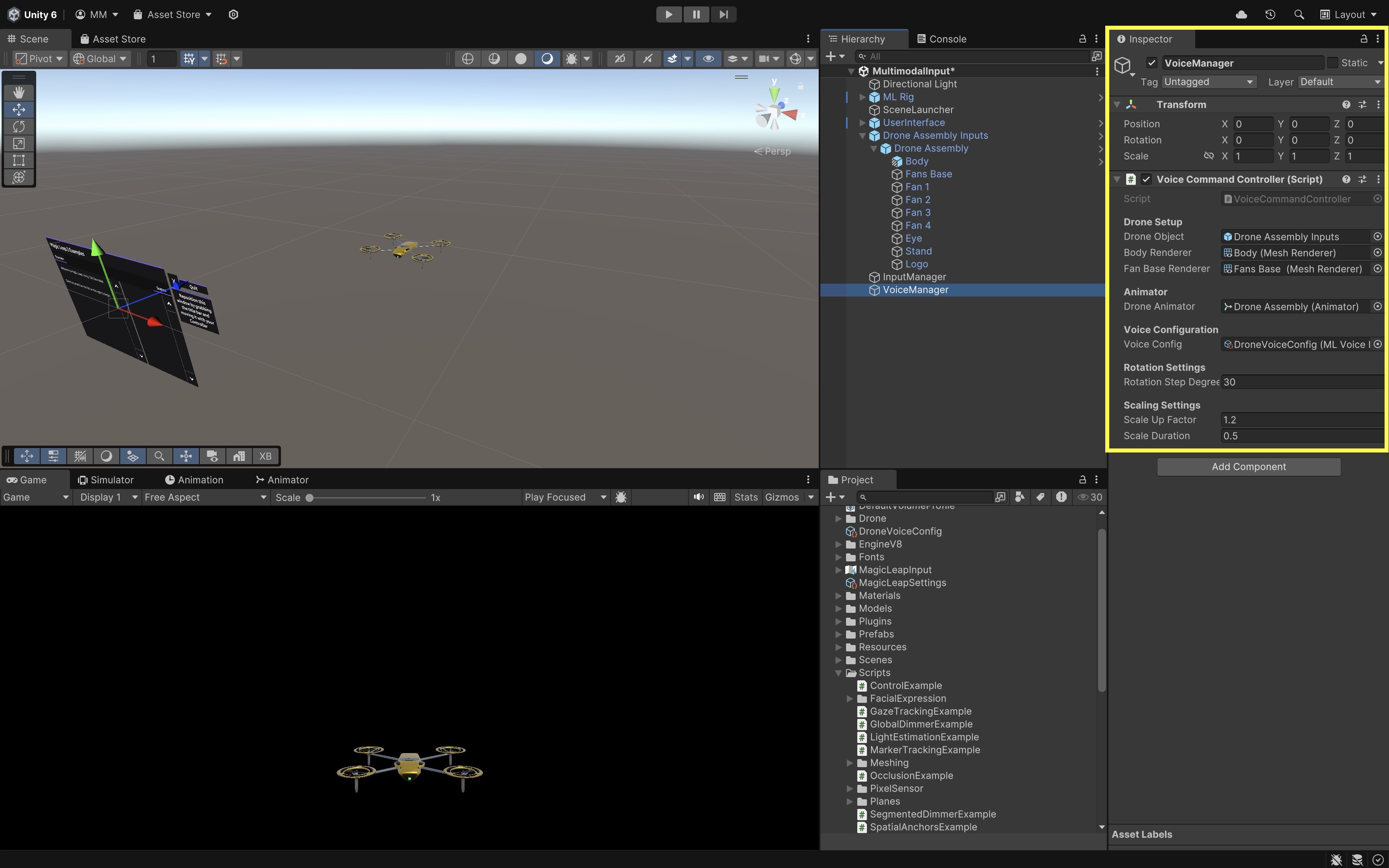
Be sure the drone prefab is already placed and visible in the scene.
- In the
- Build and Test:
- Build and deploy your Unity project to the Magic Leap 2 device.
- Launch the application on the headset.
- Say “Change Color” to change the color of the drone’s Body and Fan Base materials.
- Say “Scale” to make the drone temporarily scale up and then return to its original size.
- Say “Turn” to rotate the drone 30 degrees to the right on the Y-axis.
- Say “Animate” to begin stepping through the drone’s disassembly animations, one part at a time.
- Say “Reset” to reassemble the drone and return it to the default state using the
Assemblyanimation trigger.
These are app-specific commands. If system voice activation is required, begin by saying “Hey Magic Leap” before the command.
Hand Gestures
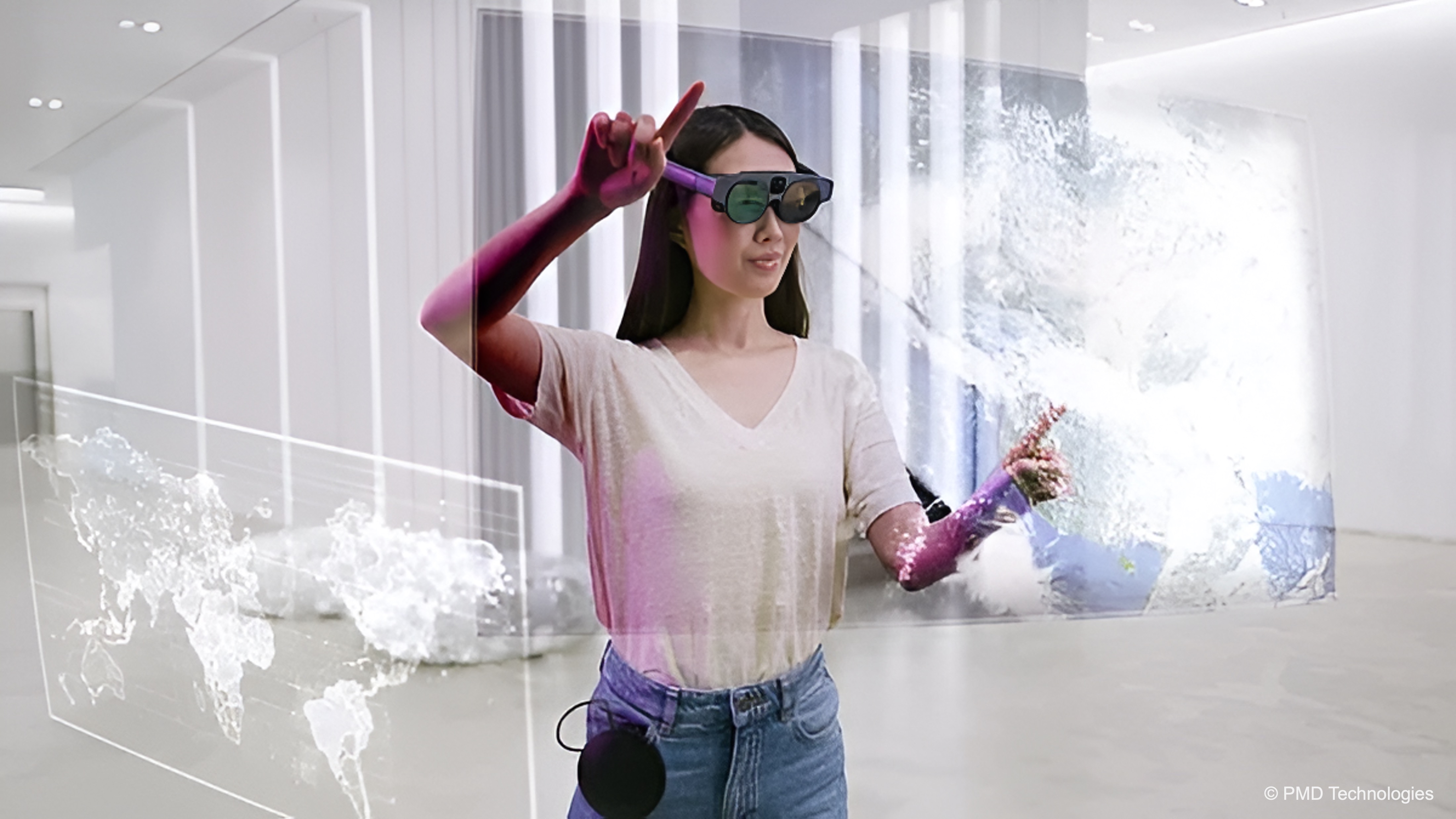
Hand gestures use natural hand movements to control and manipulate digital content in spatial AR environments. Through a combination of cameras and depth sensors, AR headsets like Magic Leap 2 and HoloLens 2 track hand poses and finger movements in 3D space—allowing users to interact with digital elements as if they were physically present. Magic Leap 2 provides robust, markerless hand tracking with high-fidelity skeletal mapping (down to individual finger joints and angles), enabling intuitive, controller-free interactions. Gesture recognition builds upon real-time hand tracking by detecting specific hand poses or transitions (e.g., pinch, grasp, point). Hand gestures are a key modality due to enabling natural and hands-free interactions in AR. They are also ideal for users who can’t easily use buttons, joysticks, or triggers.
XR Hands
This tutorial walks you through using Unity’s XR Hands package to explore, visualize, and debug hand-tracking data and gestures. You will learn how to install XR Hands, import the Gestures and HandVisualizer samples, use the debugging tools, understand hand nomenclature, and get an overview of how to create or integrate custom gestures into your own XR projects.
Project Setup
To begin working with hand tracking, you must install XR Hands along with a compatible provider plug-in.
As of now, only OpenXR implements the XRHandSubsystem and provides hand-tracking data.
- Open
Window > Package Management > Package Manager. - In the package dropdown, select
Unity Registry. - Search for
OpenXRand install it as well. - Enable the
OpenXR Hand Tracking featureinProject Settings > XR Plug-in Management > OpenXR > Features. - Install for
XR Hands. - Open the
Samplestab. - Import
HandVisualizerandGestures.
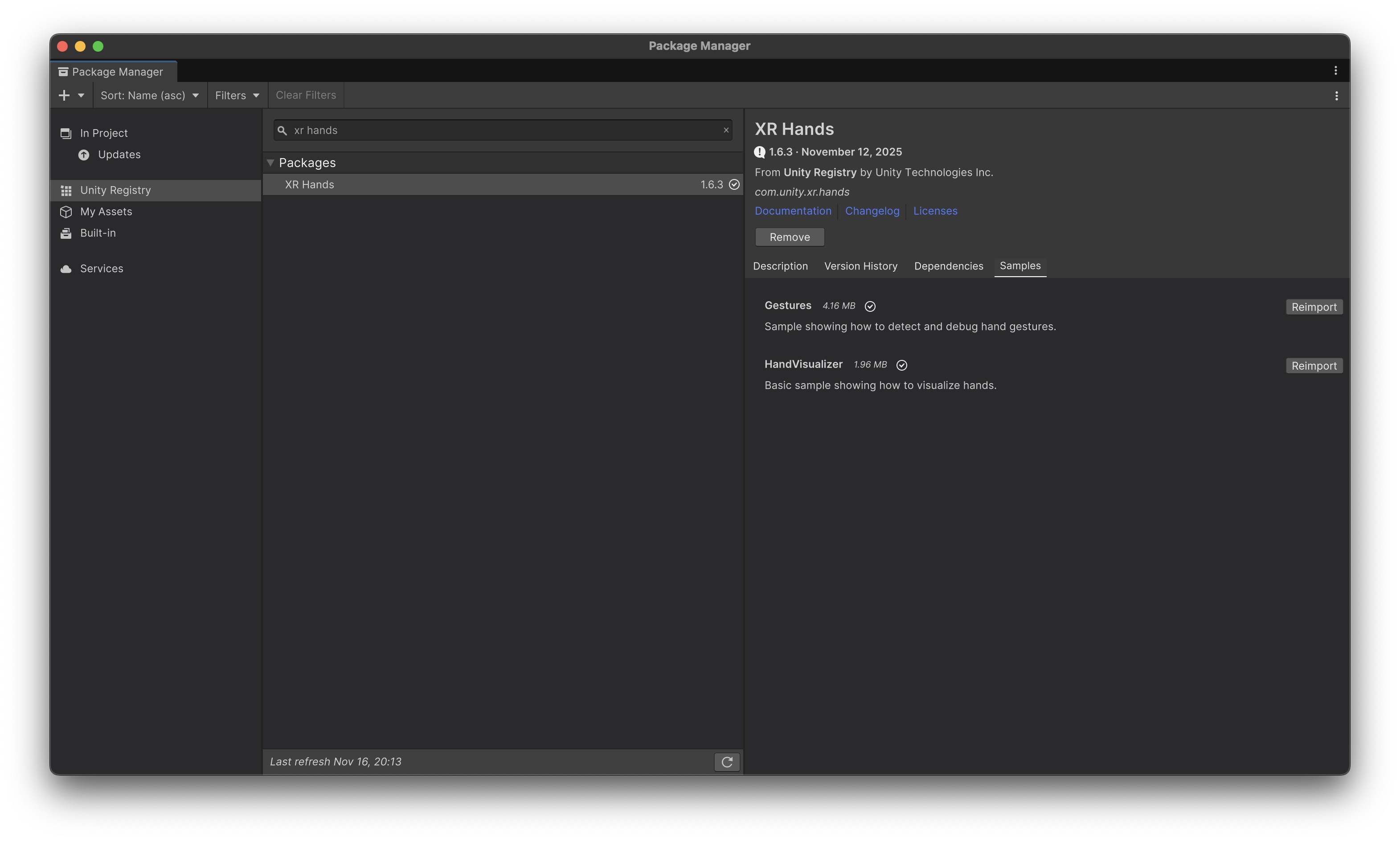
XR Hands will not function unless your target platform’s provider supports the XR Hand subsystem.
Hand Shape Debugger
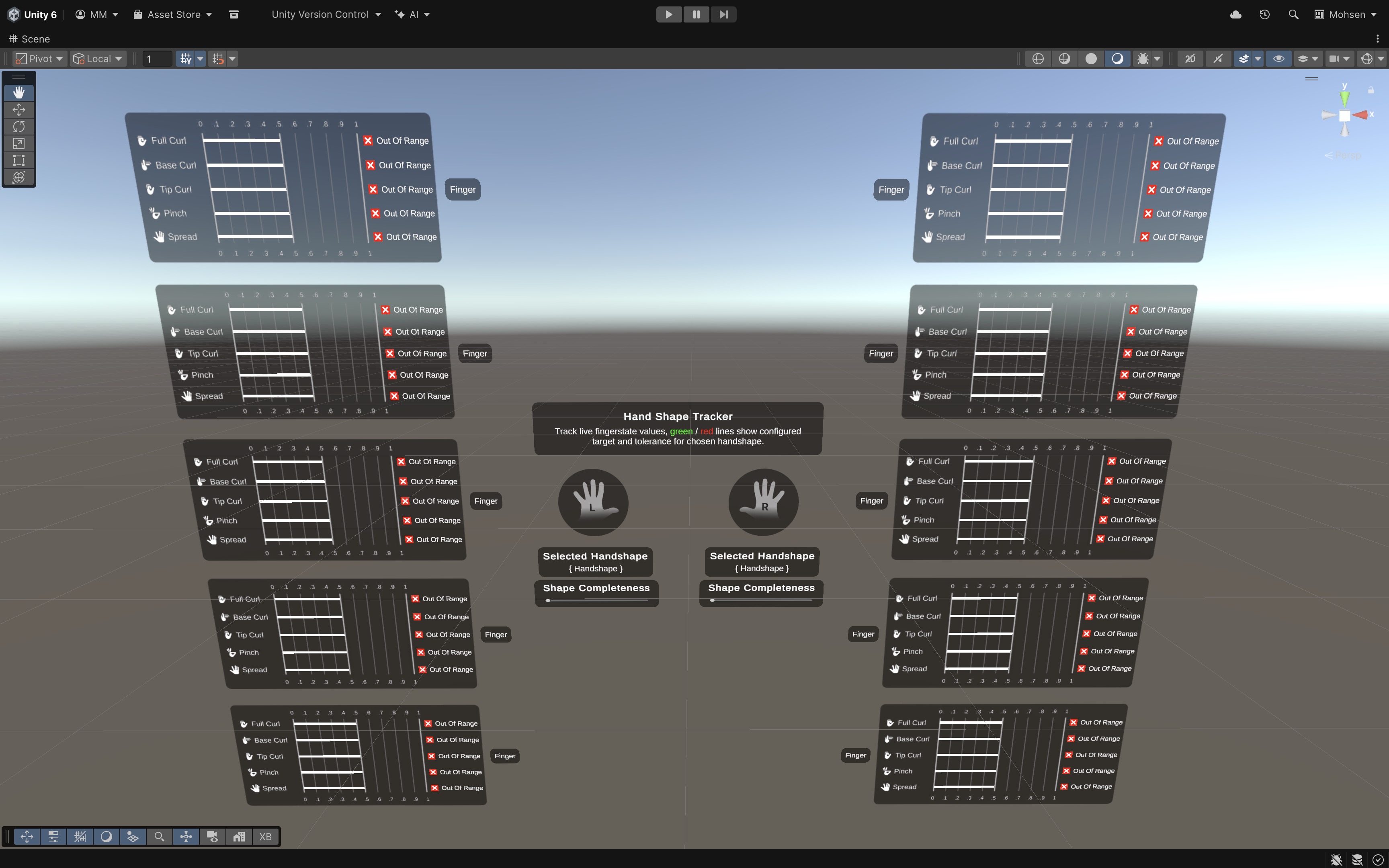
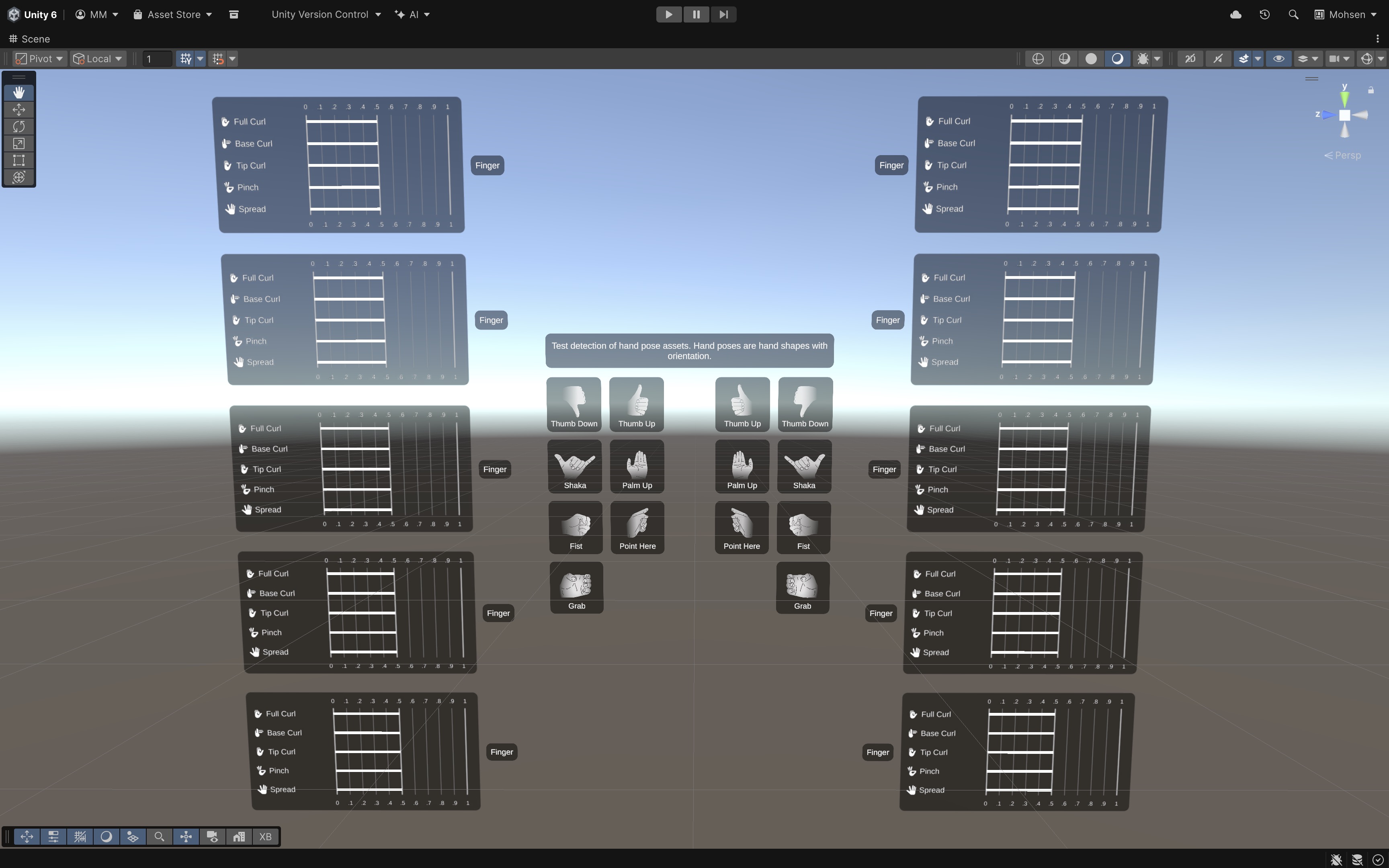
Inside the Gestures sample scene, you will find several debugging tools that help visualize, compare, and author gestures using real hand-tracking data. The Hand Shape Debugger visualizes static pose information and how closely your current hand position matches the target values for a gesture. Features:
- Displays the current curl, splay, and positions of finger joints.
- Highlights target comparisons for custom or predefined gestures.
- Shows tolerance bands so you can see where recognition might fail.
- Useful for tuning static gestures, evaluating differences in hand skeletons, and detecting tracking errors.
Advanced Pose Debugger
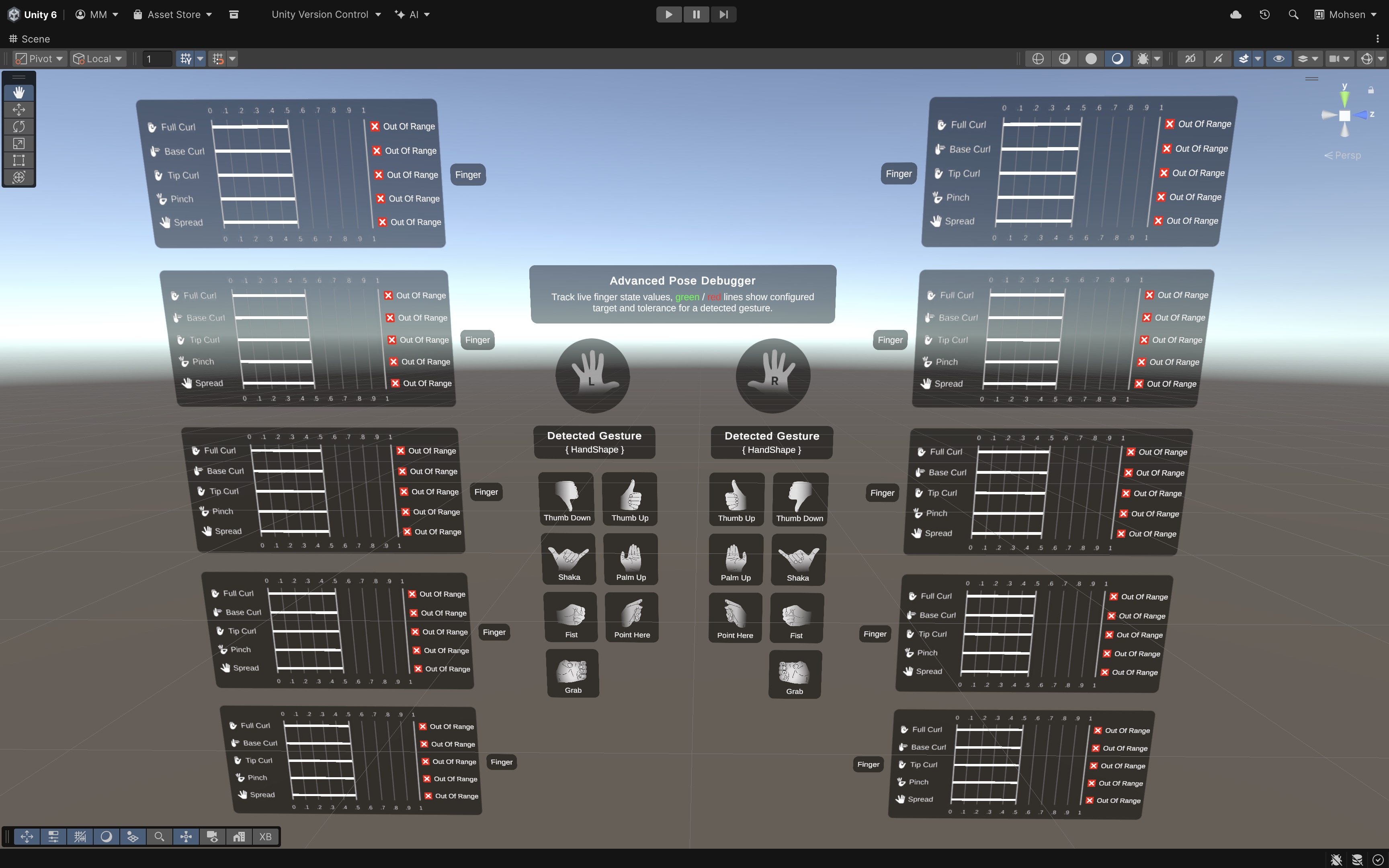
This debugger provides deeper visualization into joint-level tracking data. Because the debugger can display tracking states, it helps diagnose issues like occluded fingertips, difficult-to-track finger shapes, and overly complex gestures. Features:
- Displays per-joint data (pose, radius, velocity).
- Shows tracking state per joint.
- Great for debugging—gesture reliability, hand model alignment, and gaps in tracking when fingers occlude each other.
Hand Pose Debugger
This debugger shows the entire hand pose from the XRHand API as a single object. Your application may combine this data with grip poses, pinch poses, poke poses, and Meta Aim Hand data (pinch, menu, system gestures). Features:
- Visualizes the root pose and full joint hierarchy.
- Shows live movement of tracked hand joints.
- Offers a practical way to interpret Unity’s representation of the OpenXR joint layout.
Hand Visualizer
Imported from the HandVisualizer sample, the HandVisualizer provides:
- A detailed hand mesh that follows the tracked joints
- A script that updates the hand model using OpenXR data layout
- Material highlighting for visibility and debugging
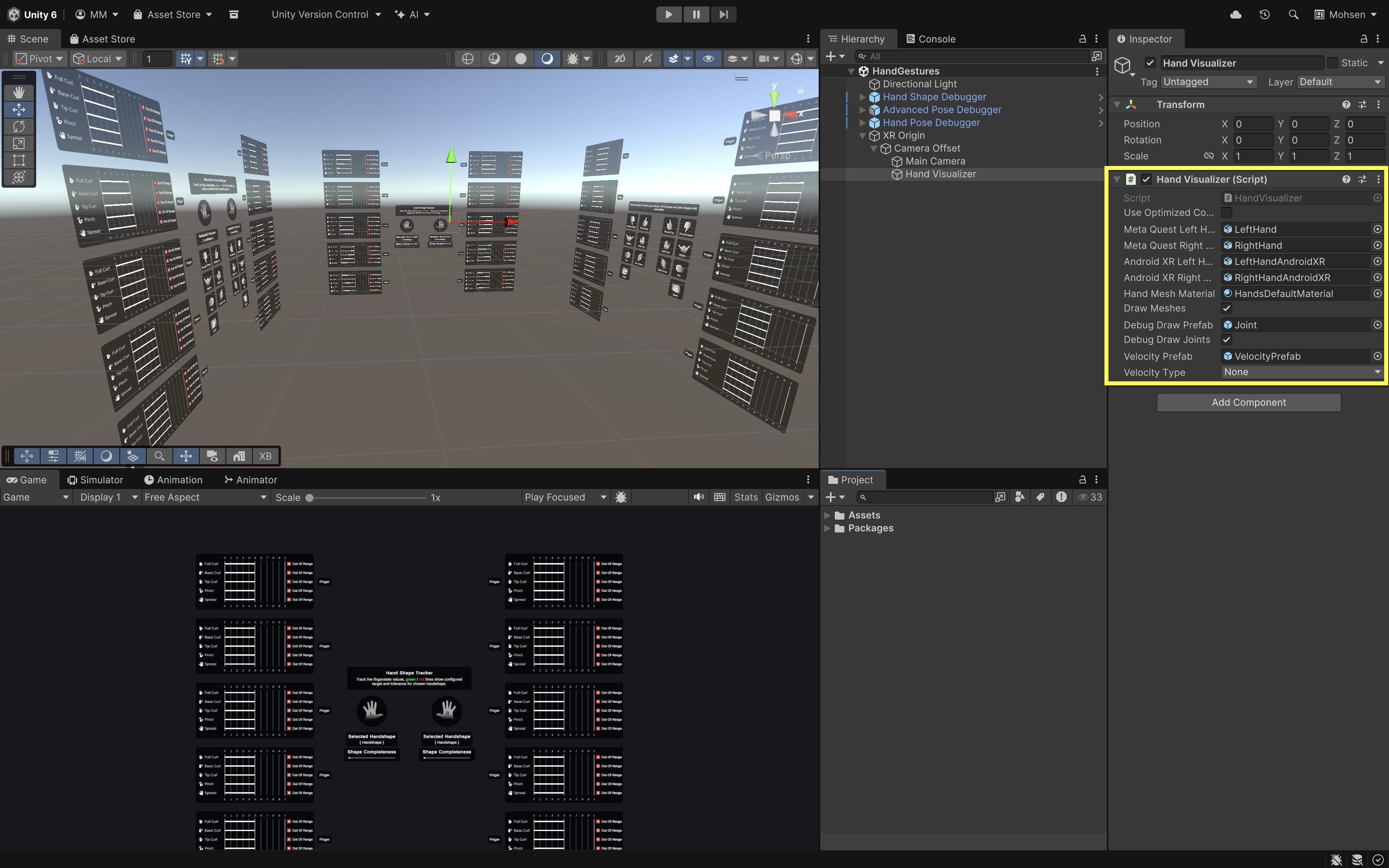
The visualizer’s hand model should be placed under the
XR Origin > Camera Offsetso its position matches real hand tracking. TheXRHandSkeletonDrivercomponent automatically maps Unity joint transforms to the tracked joints.
Hand Skeleton Nomenclature
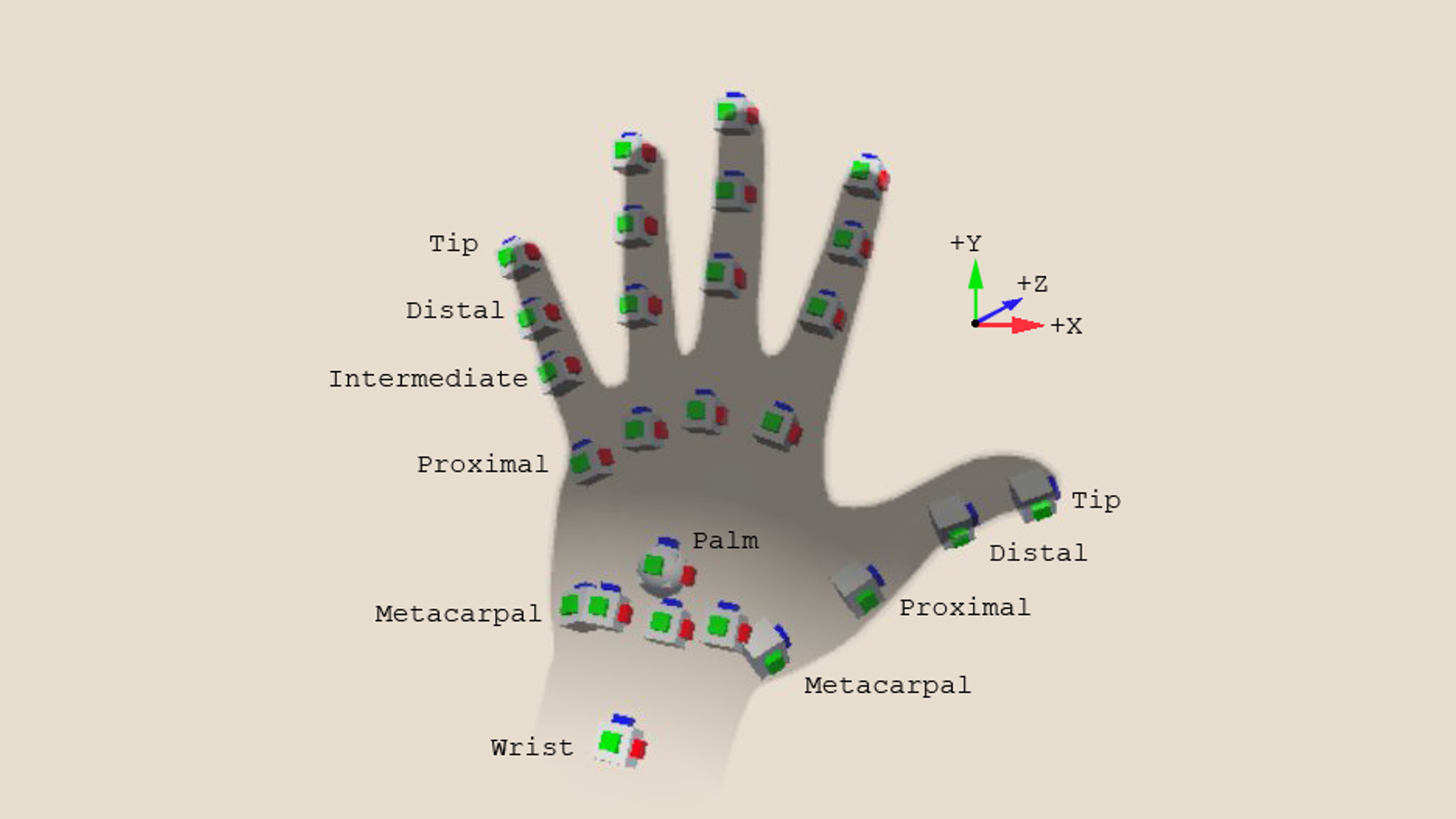
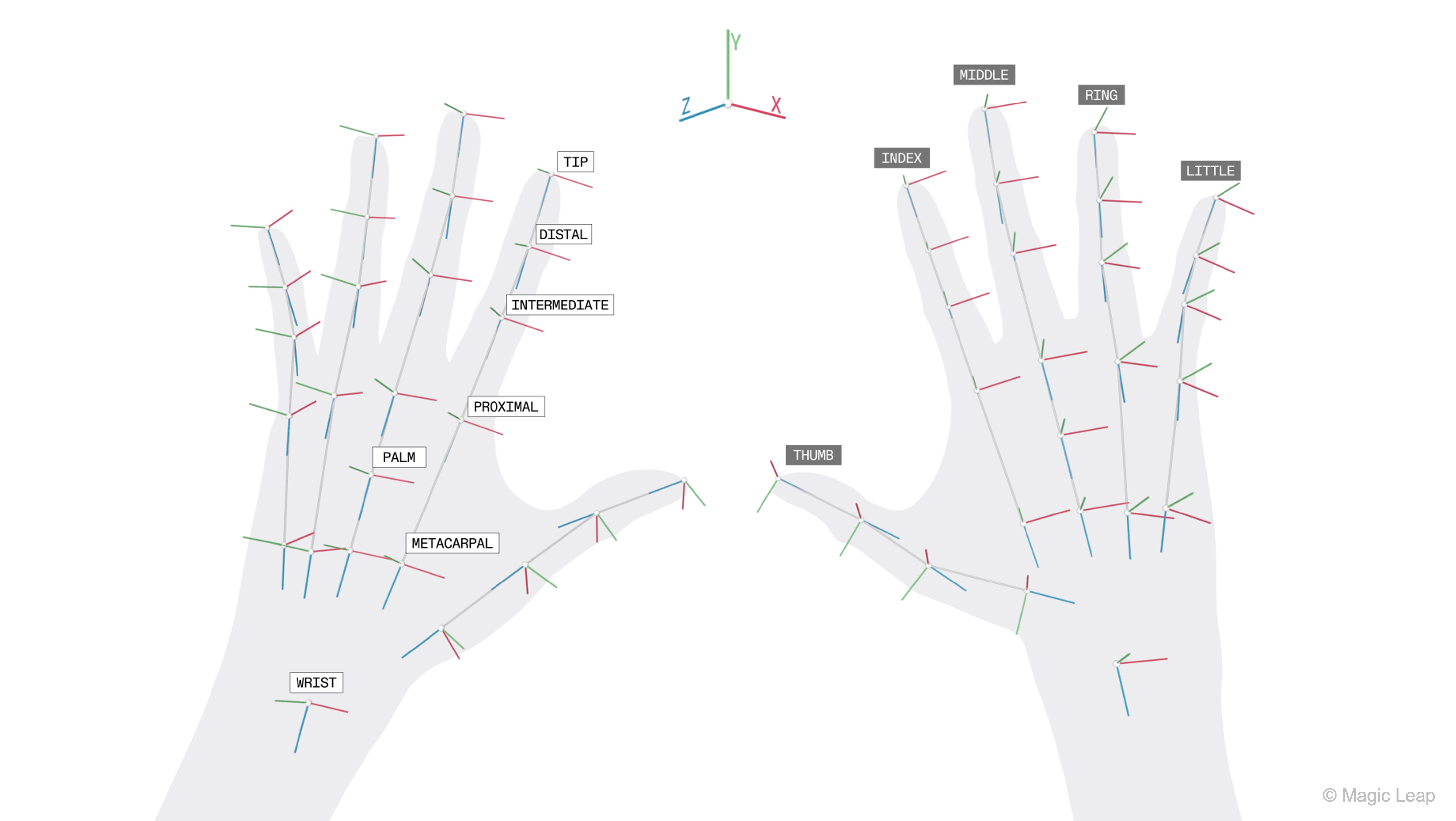
Unity follows OpenXR’s hand-joint naming convention, which is bone-based rather than anatomical. Understanding these names helps when inspecting data in debuggers, creating custom gestures, or constructing custom hand rigs. Tracked points include:
- Fingertips: The outermost tracked points at the ends of each finger. These are crucial for detecting pokes, pinches, and fine motor gestures.
- Distal / Intermediate / Proximal joints: These represent the three major joint sections of each finger (except the thumb, which lacks an intermediate joint). They provide curl and bend information used for gesture recognition and hand pose estimation.
- Metacarpals: The base joints nearest the wrist that define the starting point of each finger. Metacarpals help establish overall finger spread and orientation.
- Palm: A single tracked point at the center of the hand’s palm. It provides a stable reference point for orientation, gesture anchors, and certain palm-facing interactions.
- Wrist: The root joint of the hand skeleton where the hand meets the forearm. It serves as the primary reference for the entire hand pose and coordinate space.
Review this Unity documentation to learn more about hand data and model.
Using Gestures in Your Project
Unity provides two categories of gesture support:
Creating Custom Gestures with Unity’s Authoring Tool: Unity’s custom gesture authoring system allows you to design your own hand gestures using joint curls, spreads, poses, and tolerance rules. These gestures are heuristic-based rather than trained with machine learning, which means the accuracy depends largely on how well you configure the parameters and test them with real users. Follow this workflow inside the Gestures sample scene to set up custom gestures:
- Create a Static Hand Gesture Asset:
- In the Project window, right-click
Create > XR > Hand Interaction > Hand Shape. - Name your new gesture (e.g.,
PeaceSign, etc.). - Select the gesture asset to reveal its inspector options.
- In the Project window, right-click
- Configure Gesture Parameters:
- Each gesture consists of target shapes and tolerances for specific joints or fingers.
Finger curl— how straight or bent a finger should beFinger spread— how far fingers should be apartFinger positional/orientation hints— optional directional cuesPalm orientation— useful for distinguishing similar shapesRequired vs. optional fingers— define strict vs. flexible gesture parts- Every value includes a tolerance slider, which determines how flexible the gesture recognition should be.
- Test Using the Debuggers:
- The Hand Shape Debugger shows whether each finger meets your target conditions.
- The Advanced Pose Debugger provides per-joint accuracy and tracking states.
- The Hand Pose Debugger visualizes the entire tracked hand.
Using Existing (Built-In) Gestures: If using the OpenXR Meta Aim Hand feature, you automatically receive pinch, poke, grab / grip, menu, system, and aim direction and pointing pose. These gestures are easy to use for UI interaction, object manipulation, and hand-based selection. Use the following script to access built-in gestures:
```csharp
var aimHand = MetaAimHand.right;
if (aimHand.aimFlags.HasFlag(MetaAimFlags.Pinch))
{
    // Handle pinch detected
}
```
Alternatively, you can use the events built into the Static Hand Gesture component of your target gesture. In the example below, we assign a cube to Left Shaka and Right Shaka—the former toggles the cube’s Mesh Renderer while the latter toggles a custom color transition script.
Result:
This allows you to evaluate where tracking breaks or whether tolerances are too strict. Review this Unity documentation to learn how to set up custom hand gestures.
Magic Leap Hand Gestures
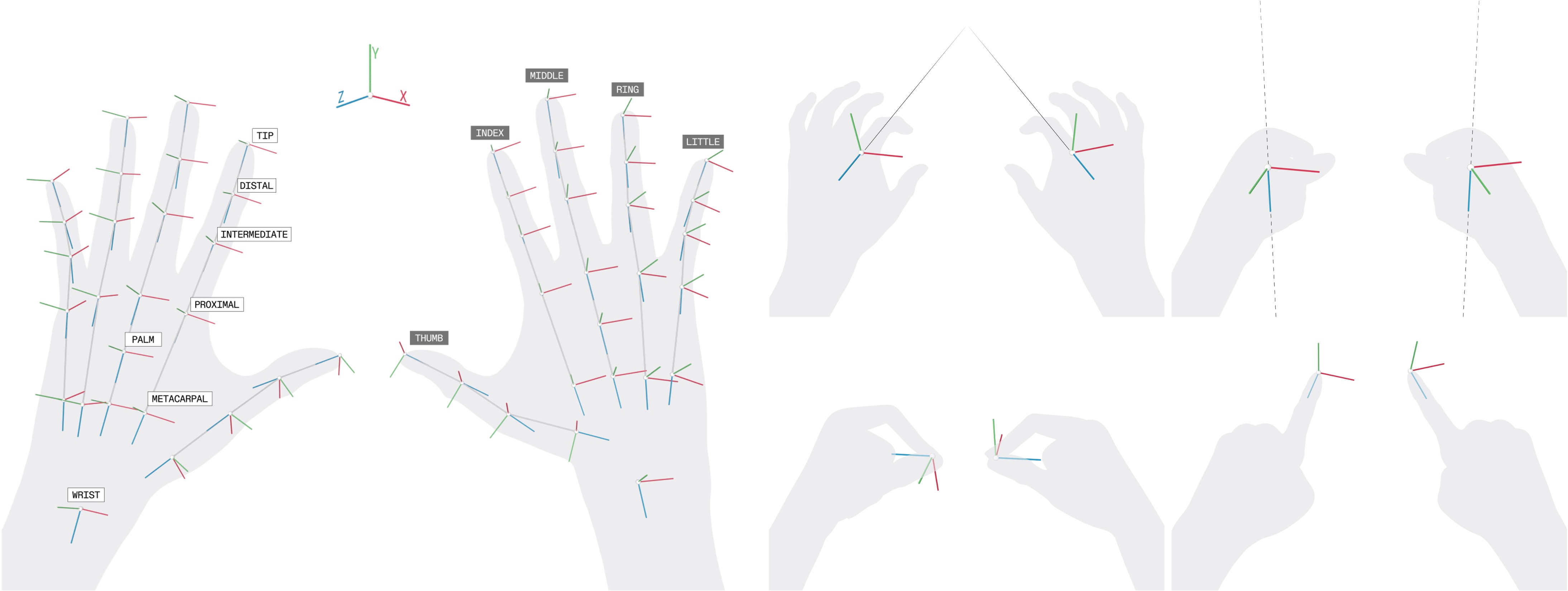
Magic Leap 2 uses its headset cameras to track users’ hands in real time, allowing natural gestures to serve as input for apps. Hand tracking is available across Magic Leap’s native MLSDK, MRTK, Unity, and OpenXR workflows. In Unity specifically, the Magic Leap 2 OpenXR Unity SDK exposes standardized OpenXR hand-tracking data and supports extensions such as XR_EXT_hand_interaction and XR_EXT_palm_pose, which define joint positions, palm poses, and interaction behavior. End-user OS-level hand-tracking options can be toggled without affecting how apps receive or use this data.
Review this Magic Leap documentation to learn more about how to set up custom hand gestures.
Definitions
-
HandController: A subclass of the XR Interaction Toolkit that substitutes controller input with tracked-hand input. It maps finger gestures and hand poses to XR input actions, enabling natural interactions like grabbing or pointing. -
HandVisualizer: A script that renders joint meshes or markers to visualize hand bones. This is especially useful for debugging gesture recognition or for providing visual feedback to users in the AR environment. -
XR Rig: The main AR rig including camera, origin, and interaction managers. It serves as the foundation for positioning the user’s viewpoint and managing spatial input within the scene. -
HAND_TRACKING: A required manifest permission to enable real-time hand tracking. Without this permission, the system cannot access or process hand joint data from the headset’s sensors. -
XR Grab Interactable: A component that allows virtual objects to be grabbed, moved, and released with hands or controllers. It supports gesture-based interactions like pinching or grasping, and works seamlessly with both hand tracking and physical controllers.
Review this Magic Leap documentation to learn more about developing custom hand tracking capabilities for Magic Leap 2.
Implementation
Now, let’s add hand tracking and pinch-to-grab functionality to our existing Magic Leap scene that already supports controller and voice commands. Users will be able to pinch with their index finger and thumb to grab a drone part, move it around using their hand, and release the pinch to drop the part, which then returns smoothly to its original position.
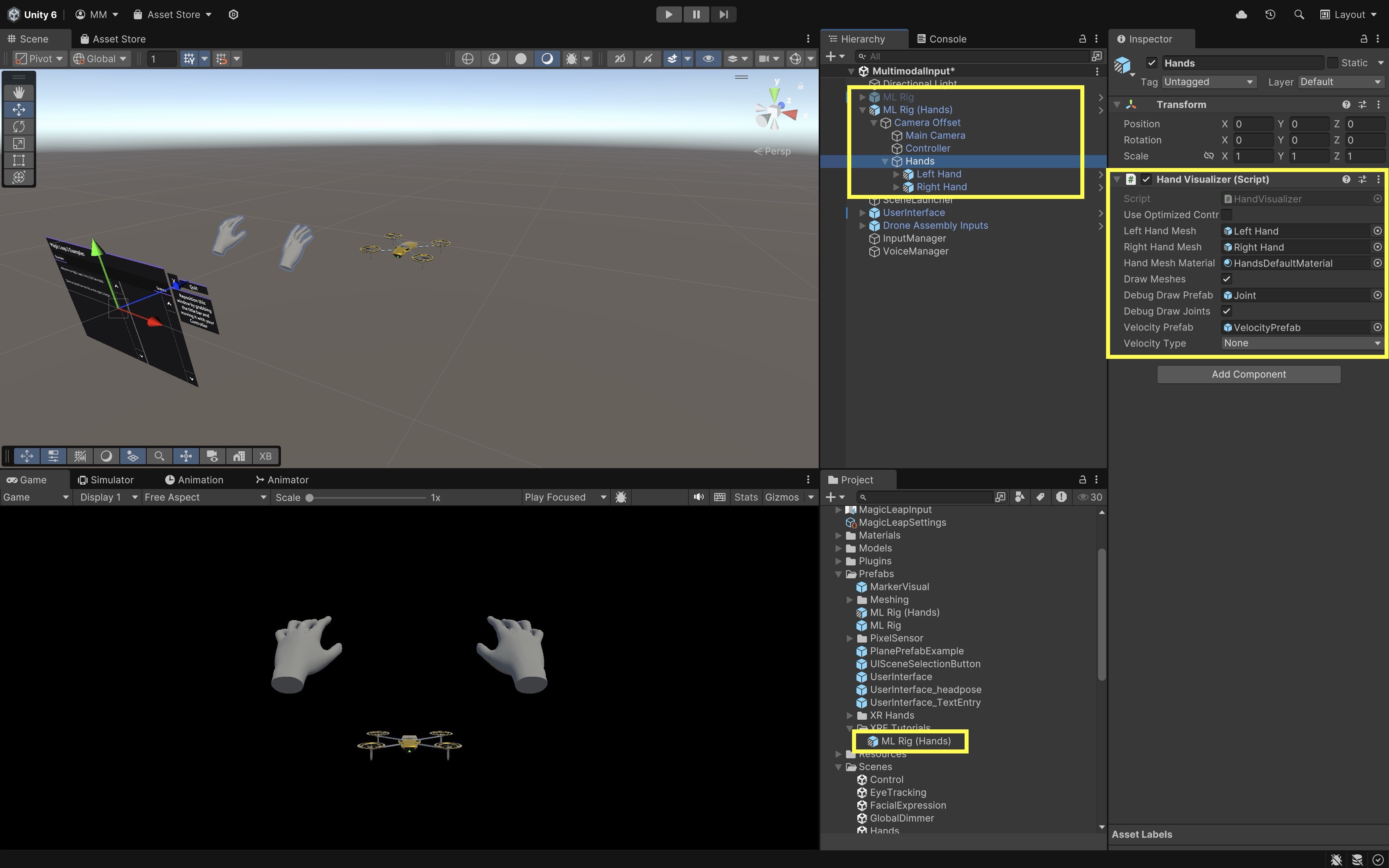
- Prepare the Hand Tracking Rig:
- Open the provided
Hands.unityscene underAssets > Scenes > Hands.unity. - In the
Hierarchy, locate the GameObject namedML Rig (Hands). - Drag it to
Assets > Prefabs > XRE Tutorialsto save it as anOriginal Prefab(ML Rig (Hands).prefab). - Open your main scene (e.g.,
MultimodalInput.unity). - Delete or disable the existing
ML Rig. - Drag the newly saved prefab
ML Rig (Hands)into theHierarchyand position it appropriately. This prefab includes aHand Visualizercomponent and the required tracking setup.
- Open the provided
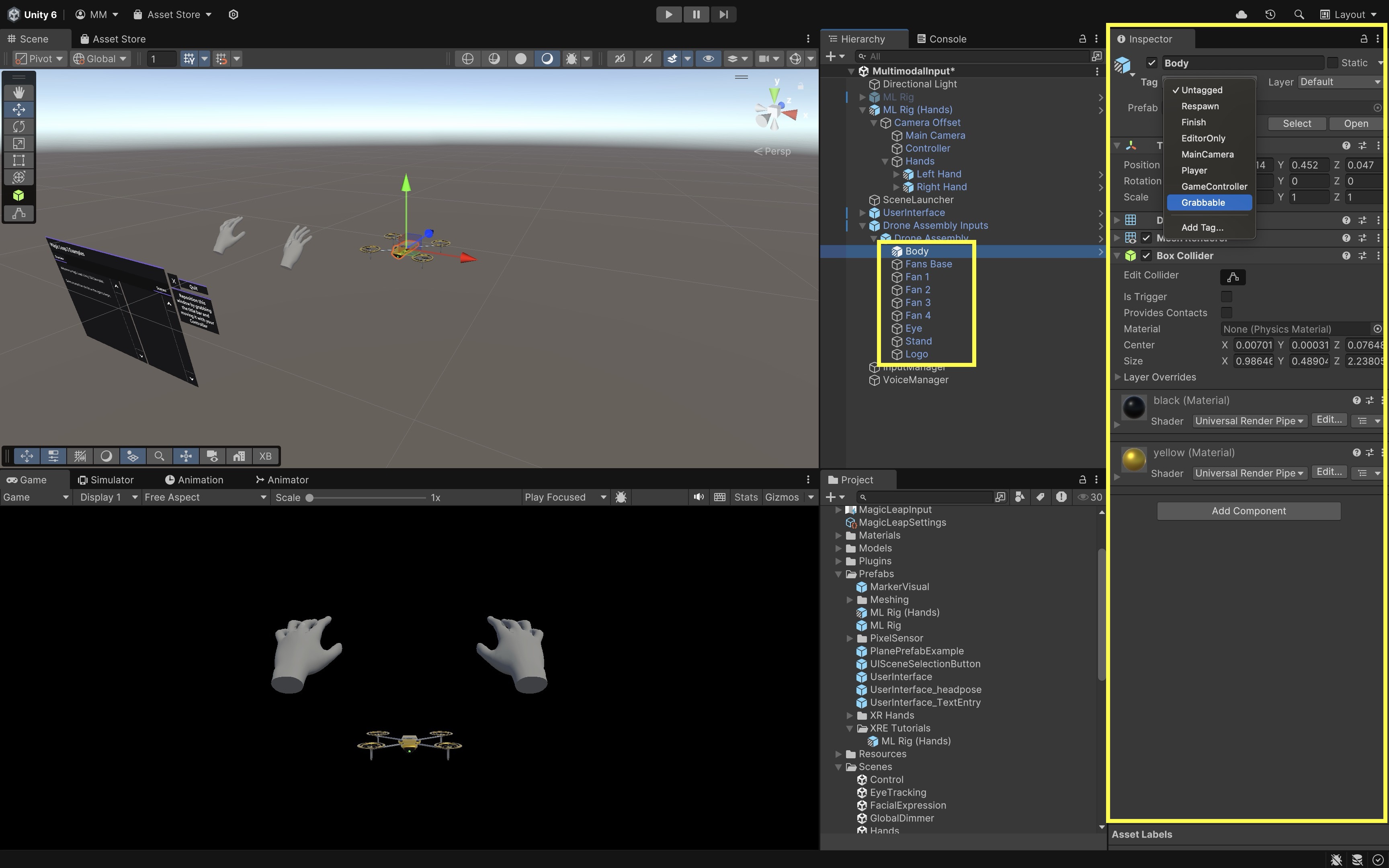
- Add Grabbable Drone Parts:
- Select the drone parts you want to make grabbable (e.g.,
Fan 1,Body, etc.). - For each part add a
BoxColliderorSphereColliderif one doesn’t exist. - With the parts still selected, open the
Tagdropdown in theInspectorand selectAdd Tag.... - Create a new tag called
Grabbable. - Then assign it under the objects’
Tagdropdown.
- Select the drone parts you want to make grabbable (e.g.,
- Create the Grabbing Script:
- Create a new script in
Assets > Scripts > XRE Tutorials - Name it
HandGrabManager.csand paste the following code:
using System.Collections.Generic; using UnityEngine; using UnityEngine.InputSystem; using UnityEngine.InputSystem.XR; using UnityEngine.XR.Interaction.Toolkit.Inputs; using System.Collections; public class HandGrabManager : MonoBehaviour { [SerializeField] private Camera mainCamera; [SerializeField] private float grabDistance = 0.1f; [SerializeField] private float returnSpeed = 2f; [SerializeField] private Animator animatorToControl; [SerializeField] private float animatorReactivateDelay = 1.5f; private InputActionMap leftHandMap; private InputActionMap rightHandMap; private InputAction leftPinchPose; private InputAction leftPinchValue; private InputAction leftPinchReady; private InputAction rightPinchPose; private InputAction rightPinchValue; private InputAction rightPinchReady; private Transform grabbedObject = null; private Vector3 originalPosition; private Quaternion originalRotation; private bool isGrabbing = false; private Coroutine reenableAnimatorCoroutine; private enum HandSide { Left, Right } private HandSide activeHand; private void Start() { var inputManager = FindObjectOfType<InputActionManager>(); var inputAsset = inputManager.actionAssets[0]; leftHandMap = inputAsset.FindActionMap("LeftHand"); rightHandMap = inputAsset.FindActionMap("RightHand"); leftPinchPose = leftHandMap.FindAction("Pinch"); leftPinchValue = leftHandMap.FindAction("PinchValue"); leftPinchReady = leftHandMap.FindAction("PinchReady"); rightPinchPose = rightHandMap.FindAction("Pinch"); rightPinchValue = rightHandMap.FindAction("PinchValue"); rightPinchReady = rightHandMap.FindAction("PinchReady"); leftHandMap.Enable(); rightHandMap.Enable(); } private void Update() { HandlePinch( leftPinchPose, leftPinchValue, leftPinchReady, HandSide.Left ); HandlePinch( rightPinchPose, rightPinchValue, rightPinchReady, HandSide.Right ); UpdateReturn(); } private void HandlePinch( InputAction poseAction, InputAction valueAction, InputAction readyAction, HandSide hand ) { var ready = readyAction.ReadValue<float>() > 0f; var value = valueAction.ReadValue<float>(); if (!ready) return; PoseState poseState = poseAction.ReadValue<PoseState>(); Vector3 pinchPos = poseState.position; if (value > 0.9f) { if (!isGrabbing) { Collider[] hits = Physics.OverlapSphere( pinchPos, grabDistance ); foreach (var hit in hits) { if (hit.CompareTag("Grabbable")) { grabbedObject = hit.transform; originalPosition = grabbedObject.position; originalRotation = grabbedObject.rotation; isGrabbing = true; activeHand = hand; // Stop any pending reactivation if (reenableAnimatorCoroutine != null) { StopCoroutine(reenableAnimatorCoroutine); reenableAnimatorCoroutine = null; } // Disable animator immediately if (animatorToControl != null && animatorToControl.enabled) { animatorToControl.enabled = false; } break; } } } if (isGrabbing && hand == activeHand && grabbedObject != null) { grabbedObject.position = pinchPos; } } else if (isGrabbing && hand == activeHand) { isGrabbing = false; // Start delayed animator re-enable if (animatorToControl != null) { reenableAnimatorCoroutine = StartCoroutine( ReenableAnimatorAfterDelay( animatorReactivateDelay ) ); } } } private void UpdateReturn() { if (!isGrabbing && grabbedObject != null) { grabbedObject.position = Vector3.Lerp( grabbedObject.position, originalPosition, Time.deltaTime * returnSpeed ); grabbedObject.rotation = Quaternion.Slerp( grabbedObject.rotation, originalRotation, Time.deltaTime * returnSpeed ); float distance = Vector3.Distance( grabbedObject.position, originalPosition ); if (distance < 0.001f) { grabbedObject.position = originalPosition; grabbedObject.rotation = originalRotation; grabbedObject = null; } } } private IEnumerator ReenableAnimatorAfterDelay(float delay) { yield return new WaitForSeconds(delay); if (animatorToControl != null) { animatorToControl.enabled = true; } reenableAnimatorCoroutine = null; } } - Create a new script in
- Attach and Configure the Script:
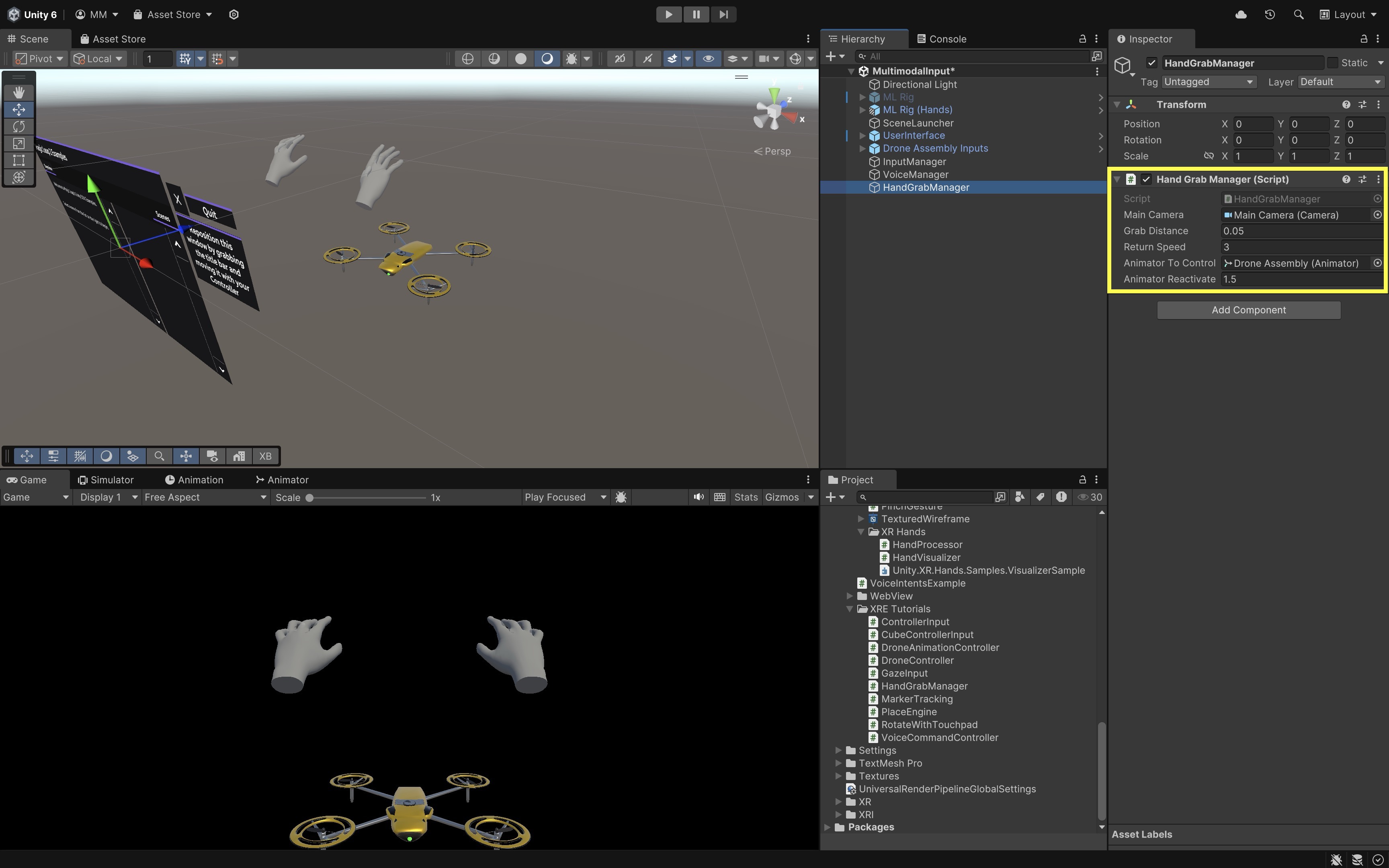
- In the
Hierarchy, create an empty GameObject and name itHandGrabManager. - Attach the
HandGrabManager.csscript to this GameObject. - In the
Inspector, drag theMain Camera(from yourML Rig (Hands)) into theMain Camerafield. - Drag the
Drone AssemblyGameObject (or the object containing the Animator component) into theAnimator To Controlfield. - Adjust
Grab DistanceandReturn Speedas needed. - Make sure each drone part you want to grab has a collider (Box or Mesh) and the tag
Grabbable.
The
Animatoris temporarily disabled during grab interactions to prevent animation overrides from interfering with object manipulation. It is automatically re-enabled after a short delay when the grab ends. - In the
- Build and Test:
- Build and deploy the scene to the Magic Leap 2 device.
- Look at the drone in the scene.
- Pinch your index finger and thumb near a part to grab a drone part when close. Works for both hands.
- Move it around in 3D space.
- Release the pinch. The part will smoothly return to its original position.
You can combine this with voice commands (e.g.,
"Grab Body") or gestures (e.g., open palm = highlight). This completes your multimodal interaction stack: controller + voice + hand tracking.
Gaze
Gaze input leverages eye tracking to determine where the user is looking, enabling spatial AR systems to infer focus, intent, or interest. In immersive environments, this input modality is fast, subtle, and intuitive—ideal for hands-free interaction, attention-aware interfaces, and multimodal workflows. This enables gaze-driven interactions such as selecting UI elements, highlighting objects, triggering context-sensitive actions, or augmenting other inputs like speech, gesture, or controller. Magic Leap 2 includes high-fidelity eye tracking with support for gaze direction and origin, fixation points, pupil size and dilation, blink detection, and confidence metrics for each eye. Common use cases of gaze-based input include:
- Gaze-Driven UI: Streamline selection by simply looking at UI elements or 3D models.
- Passive Observation: Gather analytics about what users focus on and for how long.
- Multimodal Context: Use gaze to enhance gestures (look-and-pinch) or speech (look-and-say).
- Natural Interaction: Mimics real-world attention mechanics.
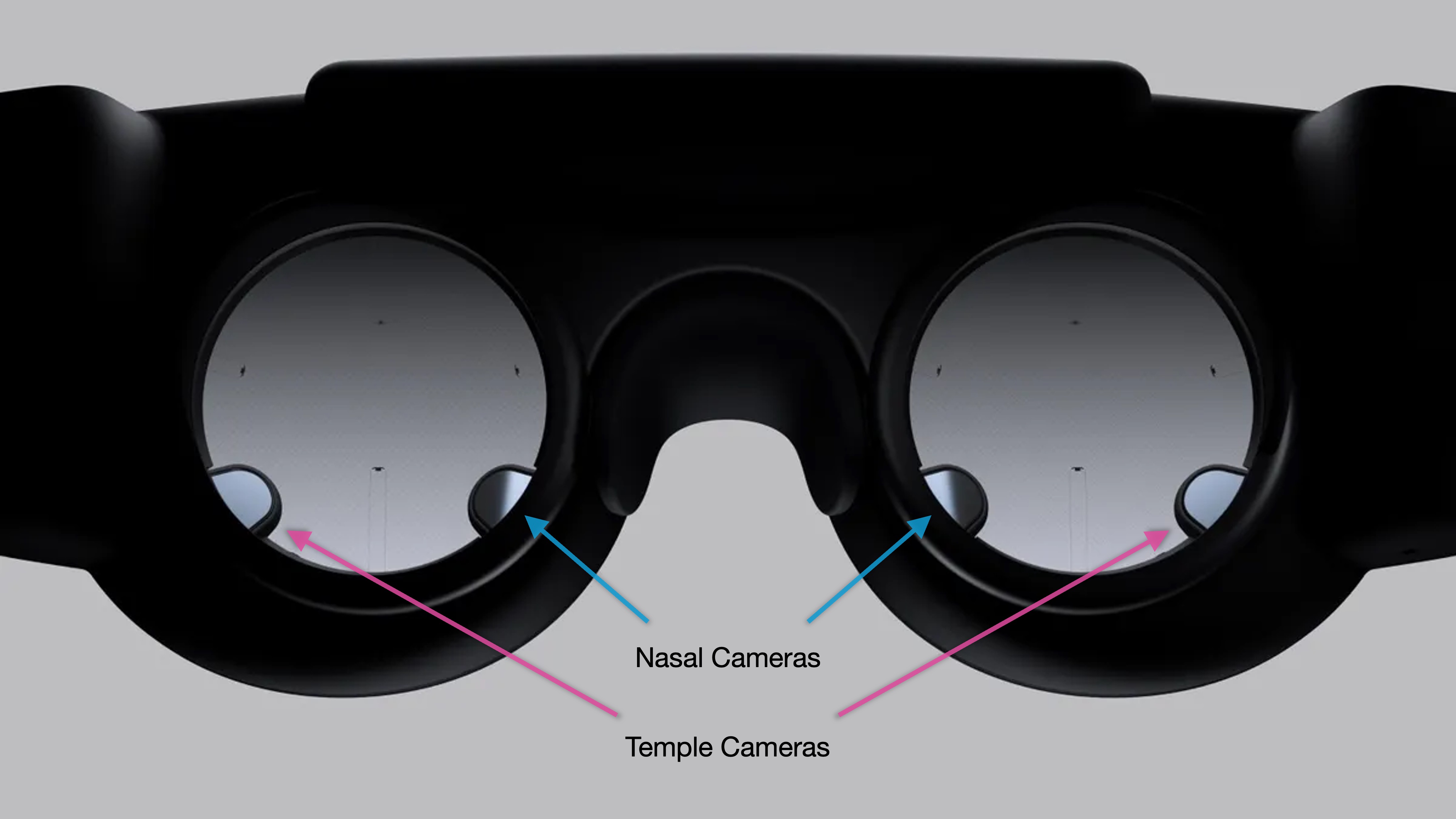
Gaze-based interaction in Magic Leap 2 provides a powerful, subtle way to select and inspect digital content without using hands or controllers, enhance voice or gesture-based workflows with contextual awareness, and build intuitive, immersive interfaces for immersive and hands-free engineering applications.
Definitions
-
Eyes Controller: XR Interaction Toolkit GameObject that behaves like a controller but is driven by gaze direction. It acts as a proxy input device, allowing developers to treat eye gaze similarly to hand-held controllers in XR interactions, simplifying integration into existing input systems.
-
GazeRayInput: A custom controller subclass that maps eye gaze to ray-based input in the XR Interaction Toolkit. This enables eye gaze to control UI elements or interactable objects by casting an invisible ray from the user’s eye position into the 3D scene, useful for point-and-select actions. -
MLPermissions: API for requesting runtime permissions such as eye tracking. It ensures that user consent is granted before accessing sensitive system features, supporting best practices in privacy and security. -
MLPermission.EyeTracking: Specific permission required to enable Magic Leap’s eye tracking system. This must be explicitly granted by the user or application at runtime to activate and use eye-tracking data, forming a crucial step in initializing gaze-driven functionality. -
MLEyes: Subsystem API for starting and stopping eye tracking functionality. It provides access to low-level gaze data such as direction, fixation, and blink state, allowing developers to build custom behaviors and analytics based on visual attention. -
XR Ray Interactor: Core component used to raycast from gaze direction and interact with virtual objects. Often used in conjunction with gaze input, it determines what the user is “looking at” by projecting a ray into the environment and detecting collisions with objects, enabling gaze-based selection and interaction.
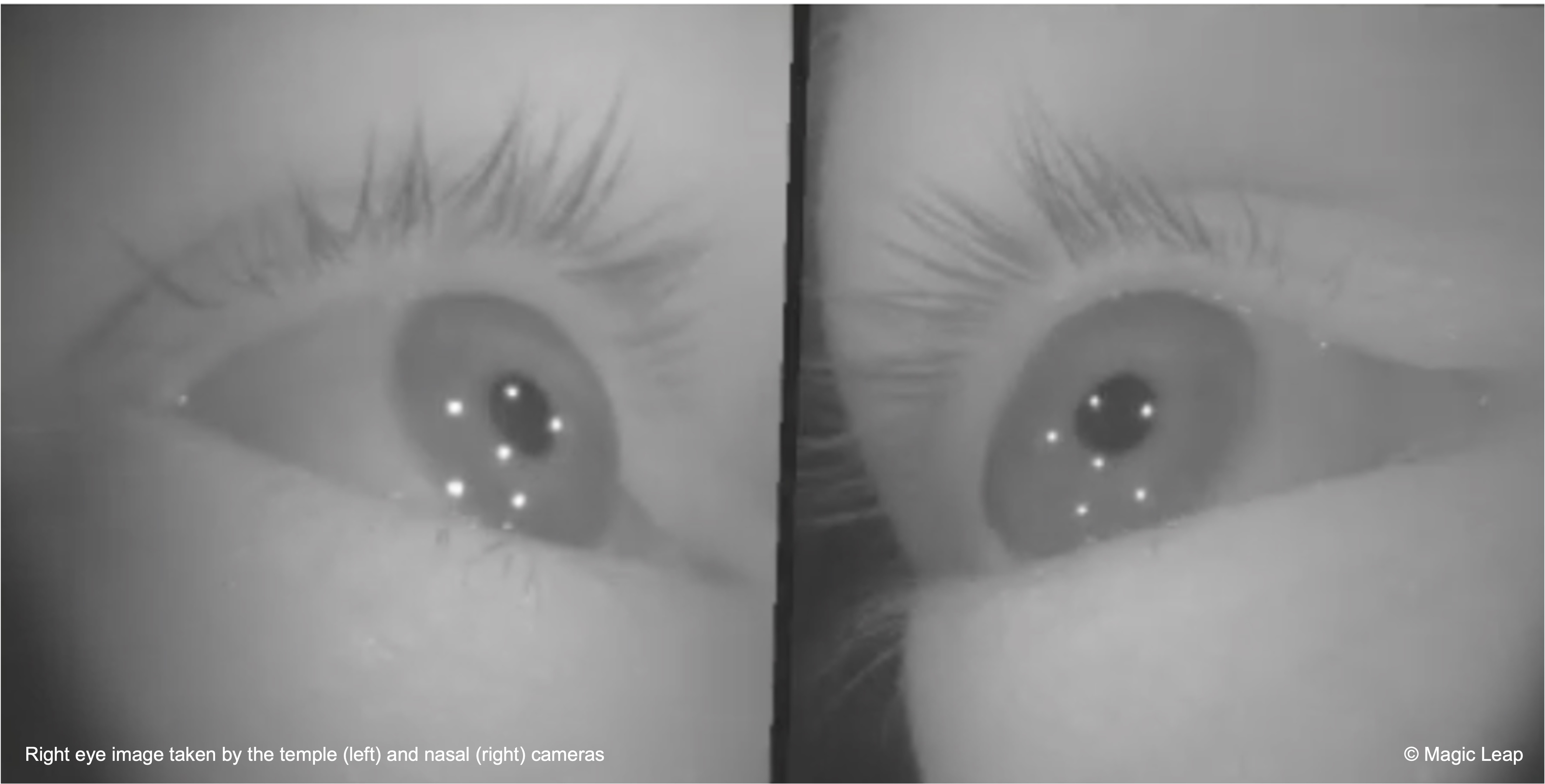
Review this Magic Leap documentation to learn more about developing custom eye tracking capabilities for Magic Leap 2.
Custom Gaze Input
Let’s explore how to use gaze fixation combined with a voice command (“Inspect”) to interact with drone parts. When the user fixates on a part for one second and says “Inspect”, the part will smoothly move toward the user, rotate for a few seconds, and then return to its original position. This approach ensures intentional interaction and avoids false activations from gaze alone.
- Prepare the Scene and GameObjects:
- Open the
MultimodalInput.unityscene. - Locate the
Drone Assembly InputsGameObject. - Expand the prefab in the
Hierarchyand ensure each child object (e.g.,Fan 1,Fan Base,Body) has aCollidercomponent (Box, Mesh, etc.) to detect gaze hits.
- Open the
- Create the Gaze Input Script:
- Create a new C# script named
GazeInput.cs. - Replace the contents with the following:
using System.Collections; using System.Collections.Generic; using UnityEngine; using UnityEngine.InputSystem; using UnityEngine.InputSystem.XR; using UnityEngine.XR.Interaction.Toolkit.Inputs; public class GazeInput : MonoBehaviour { [Header("Drone Parts")] public List<Transform> droneParts; [Header("Gaze & Gesture Settings")] public float fixationDuration = 1f; public float focusDistance = 0.5f; public float rotationDuration = 3f; public float moveSpeed = 3f; public float rotateSpeed = 30f; [Header("Hand Input")] public PinchGesture.Hands hand = PinchGesture.Hands.Right; [Header("Animator Control")] public Animator parentAnimatorToDisable; private Camera mainCamera; private Transform currentTarget; private float gazeTimer = 0f; private bool isInteracting = false; private bool hasPinched = false; private InputActionMap actionMap; private Dictionary<Transform, Vector3> originalPositions = new(); private Dictionary<Transform, Quaternion> originalRotations = new(); private Dictionary<Transform, Animator> partAnimators = new(); private void Start() { mainCamera = Camera.main; var ism = FindObjectOfType<InputActionManager>(); var mapAsset = ism.actionAssets[0]; actionMap = hand switch { PinchGesture.Hands.Left => mapAsset.FindActionMap("LeftHand"), PinchGesture.Hands.Right => mapAsset.FindActionMap("RightHand"), _ => throw new System.NotImplementedException() }; foreach (var part in droneParts) { originalPositions[part] = part.position; originalRotations[part] = part.rotation; Animator animator = part.GetComponent<Animator>(); if (animator != null) partAnimators[part] = animator; } } private void Update() { if (isInteracting) return; float pinchValue = actionMap .FindAction("PinchValue") .ReadValue<float>(); bool pinchReady = actionMap .FindAction("PinchReady") .ReadValue<float>() > 0f; if (pinchValue > 0.9f && pinchReady && !hasPinched) { hasPinched = true; if (currentTarget != null && gazeTimer >= fixationDuration) { StartCoroutine(InspectPart(currentTarget)); } } else if (pinchValue < 0.9f) { hasPinched = false; } Ray gazeRay = new Ray( mainCamera.transform.position, mainCamera.transform.forward ); if (Physics.Raycast(gazeRay, out RaycastHit hit)) { Transform hitTransform = hit.transform; if (droneParts.Contains(hitTransform)) { if (currentTarget == hitTransform) { gazeTimer += Time.deltaTime; } else { currentTarget = hitTransform; gazeTimer = 0f; } } else { currentTarget = null; gazeTimer = 0f; } } else { currentTarget = null; gazeTimer = 0f; } } private IEnumerator InspectPart(Transform part) { isInteracting = true; if (parentAnimatorToDisable != null) parentAnimatorToDisable.enabled = false; Vector3 originalPos = originalPositions[part]; Quaternion originalRot = originalRotations[part]; Vector3 targetPos = mainCamera.transform.position + mainCamera.transform.forward * focusDistance; if (partAnimators.TryGetValue(part, out Animator animator) && animator != null) { animator.enabled = false; } float t = 0f; while (t < 1f) { part.position = Vector3.Lerp(originalPos, targetPos, t); t += Time.deltaTime * moveSpeed; yield return null; } float rotateTime = 0f; while (rotateTime < rotationDuration) { part.Rotate( Vector3.up, rotateSpeed * Time.deltaTime, Space.Self ); rotateTime += Time.deltaTime; yield return null; } t = 0f; while (t < 1f) { part.position = Vector3.Lerp( part.position, originalPos, t ); part.rotation = Quaternion.Slerp( part.rotation, originalRot, t ); t += Time.deltaTime * moveSpeed; yield return null; } part.position = originalPos; part.rotation = originalRot; yield return new WaitForSeconds(1f); if (animator != null) animator.enabled = true; if (parentAnimatorToDisable != null) parentAnimatorToDisable.enabled = true; isInteracting = false; } } - Create a new C# script named
- Attach and Configure the Script:
- In your scene, create an empty GameObject named
GazeManager. - Attach the
GazeInput.csscript to this GameObject. - Got to the
Inspector. - Populate the
Drone Partslist by dragging each drone part (children ofDrone Assembly Inputs) into the array. - Assign the
Drone AssemblyGameObject (or any parent object with anAnimatorcomponent you want disabled during interaction). - Use the
Handdropdown to select which hand should trigger the interaction via pinch (LeftorRight). - Ensure each part has a
Collidercomponent (Box,Mesh, etc.) to enable gaze detection. - Adjust
Gaze & Gesture Settings. Fixation Durationspecifies how long the user must maintain gaze before the part becomes eligible for pinch interaction.Focus Distanceis the distance the part should move toward the camera.Rotation Durationspecifies how long the part should rotate before returning.Move SpeedandRotate Speedcontrol animation timing and responsiveness.
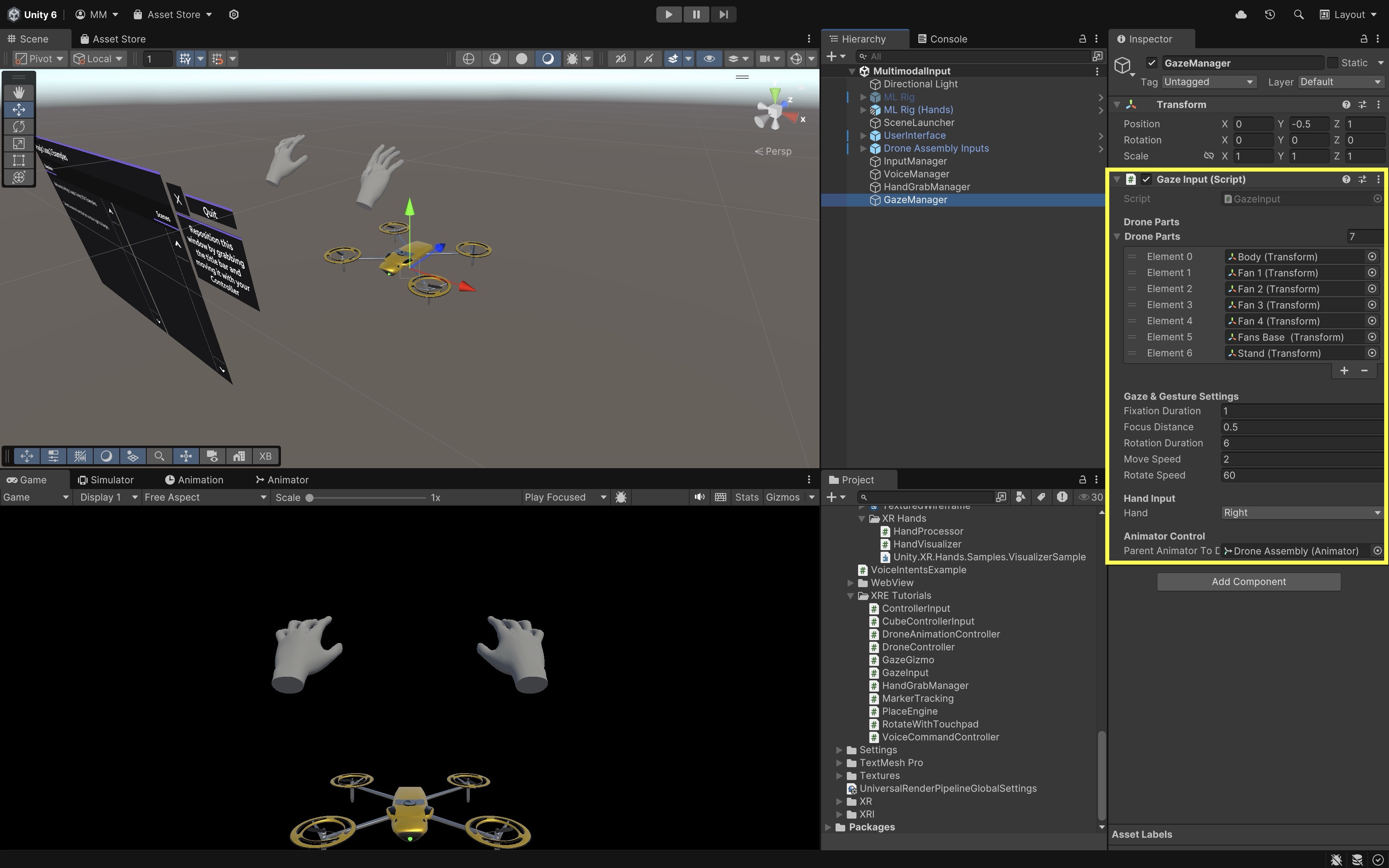
The
Animatoron the parent is temporarily disabled during interaction to prevent it from overriding scripted movement. It is automatically re-enabled when the part returns to its original pose. - In your scene, create an empty GameObject named
- Build and Test:
- Build and deploy the scene to the Magic Leap 2 headset.
- Launch the app.
- Fixate your gaze on any visible drone part (e.g.,
Body) for 1 second, then perform a pinch gesture with the selected hand. - The part will *move smoothly toward you** (~0.5 meters), rotate in place for the specified duration, and return to its original position and orientation.
This interaction design creates a deliberate and intuitive experience using gaze and hand gesture, ideal for inspection, simulation, and other control workflows.
Key Takeaways
Multimodal input in wearable AR—combining controllers, voice, gaze, and hand gestures—supports natural, flexible, and context-aware interaction across devices like Magic Leap 2 and Quest 3. Magic Leap 2 provides precise controller actions, while Quest 3 enables offline, on-device speech-to-text using Whisper with Sentis and robust gesture recognition through XR Hands. Hand gestures—including pinch, grasp, spread, and custom XR Hands shapes—enable intuitive, direct manipulation, and gaze adds subtle intent cues for hover, selection, and blended techniques like look-and-speak. Effective multimodal design means choosing the right modality for the context, supporting smooth switching, and ensuring responsive, reliable detection. Integrating these inputs cohesively leads to AR experiences that feel adaptive, efficient, and user-centered.